How to migrate from your PMS (channel manager) to Nowistay
This guide explains how to migrate from any PMS or channel manager (such as Smoobu, Lodgify, Guesty, Hostaway, SuperHote, Hospitable, OwnerRez, or others) to Nowistay. The process is similar regardless of which PMS you’re coming from.
Airbnb only allows one channel manager per account, and Booking.com one per property, so you’ll need to disconnect your channels from your current PMS before connecting them to Nowistay.
Dynamic pricing: PriceLabs integration for automated rate optimization.
Before you start
Prepare the following before starting the migration:
Note your current PMS settings: especially your pricing, minimum/maximum stay rules, check-in and check-out times for each property.
Export or screenshot your automated messages: if you have email templates or auto-messages in your current PMS, save them so you can recreate them in Nowistay.
Export your upcoming direct bookings: the bookings that did not come from Airbnb or Booking.com (direct, phone, Vrbo). Save them as a CSV file from your current PMS: you will import them into Nowistay.
Check for pending bookings: make sure all current and upcoming bookings are confirmed and noted. They remain on the OTA platforms and will sync to Nowistay once connected.
Have your Airbnb owner credentials ready: you’ll need the account that owns the listings (not a co-host account).
Have your Booking.com extranet access ready: you’ll need it to disconnect and reconnect the channel manager.
Create a Nowistay account: sign up at app.nowistay.com if you don’t have one yet.
Things to know before migrating
Connecting Nowistay as your channel manager triggers a few automatic changes on Airbnb:
Fee model change: Airbnb may switch your account to the host-only fee model (about 15.5%). Use Nowistay’s Rate Adjustment feature to increase your Airbnb rate and keep the same net revenue.
Calendar managed from Nowistay: prices and availability are now set from the Nowistay calendar.
You need to unlink your Airbnb listings from your current PMS before connecting them to Nowistay. There are two ways to do this. We recommend Method 1, which works with any PMS (Smoobu, Lodgify, Hospitable, Guesty, Hostaway, OwnerRez, SuperHote, and others) and avoids the painful wait of opening a support ticket with your current PMS or hunting down the right setting in their dashboard.
Method 1 (recommended): Remove the connection from Airbnb directly
This is the fastest and most reliable approach: you cut the connection from Airbnb’s side, so it works no matter which PMS you’re leaving and no matter whether your PMS provides a clear “disconnect” option.
Log into your Airbnb account.
Click Menu (your profile picture, top right), then Account settings.
Open Privacy.
Under Connected services, find your current PMS (e.g. Smoobu, Lodgify, Hospitable, Guesty, Hostaway) and click Remove access, then confirm.
The connection is severed immediately, for all the listings linked to that PMS (older Airbnb pages call this section Privacy & sharing > Services). You don’t have to wait for your PMS to process the request or contact their support team to find out how.
Method 2: Disconnect from your PMS dashboard
If you prefer to start from your current PMS, the general process is:
Log into your current PMS and find the Airbnb channel or integration settings.
Look for a Disconnect, Unlink, or Remove option for each Airbnb listing.
Disconnect all listings you want to migrate to Nowistay.
Important: When you disconnect from a channel manager, Airbnb may reset some values to defaults:
Minimum stay reset to 1 night
“Closed to arrival” and “Closed to departure” restrictions removed
Maximum stay reset to 1,125 nights
You’ll reconfigure these in Nowistay after connecting.
Step 2: Disconnect Booking.com from your current PMS
Booking.com lets you switch directly from your current PMS to Nowistay in the Booking.com extranet. Your property stays connected to your current PMS until the switch is complete:
Write down your Hotel ID, the number shown next to your property name at the top of the extranet. You will need it in Step 4.
Click Account, then Connectivity provider.
Click Switch providers. Do not click Deactivate: it resets your settings and leaves the property without a provider.
Search for the full word Channex (partial words are not recognized), select Channex.io, Nowistay’s connectivity partner, tick the box to accept the terms and confirm.
Important: This only changes the channel manager link. Your property, listings and bookings on Booking.com remain intact. Repeat it for each Booking.com property.
Step 3: Connect your property to Nowistay
Now that your OTA channels are disconnected from your previous PMS, let’s connect them to Nowistay. Choose the option that matches your situation:
Option A: You already have a property on Nowistay with a direct OTA or third-party PMS configuration
If your property is already on Nowistay, connected via a direct Airbnb/Booking.com integration, a third-party PMS connector (Beds24, Smoobu, Lodgify), or any other synchronization method, you don’t need to add a new property. Simply switch the synchronization method:
Click the … button on the card of the property you want to migrate.
Click Synchronization.
Open Advanced settings, click Modify synchronisation method, then Confirm.
To Do you currently use a channel manager (PMS) for this property?, answer No, I don’t use a PMS.
Click Enable Nowistay, then Enable Nowistay again in the dialog.
Click Add a booking platform (OTA), select Airbnb, connect your Airbnb owner account and select the listing to map, then click Connect.
If you previously had a co-host on Airbnb or a contact on Booking.com for the old integration, you can now remove them: they are no longer needed.
Your existing assistant configuration, welcome guide, and settings will be preserved. Only the synchronization method changes.
Coming from the Beds24, Smoobu or Lodgify connection? Switching the method deletes the bookings that came from that PMS, past and upcoming. Upcoming Airbnb and Booking.com reservations come back when you connect those channels, but direct bookings do not: before switching, go to Bookings, click the … button and Download CSV, then import them again (Step 7). Bookings created in Nowistay itself (manual bookings, direct booking widget) are kept.
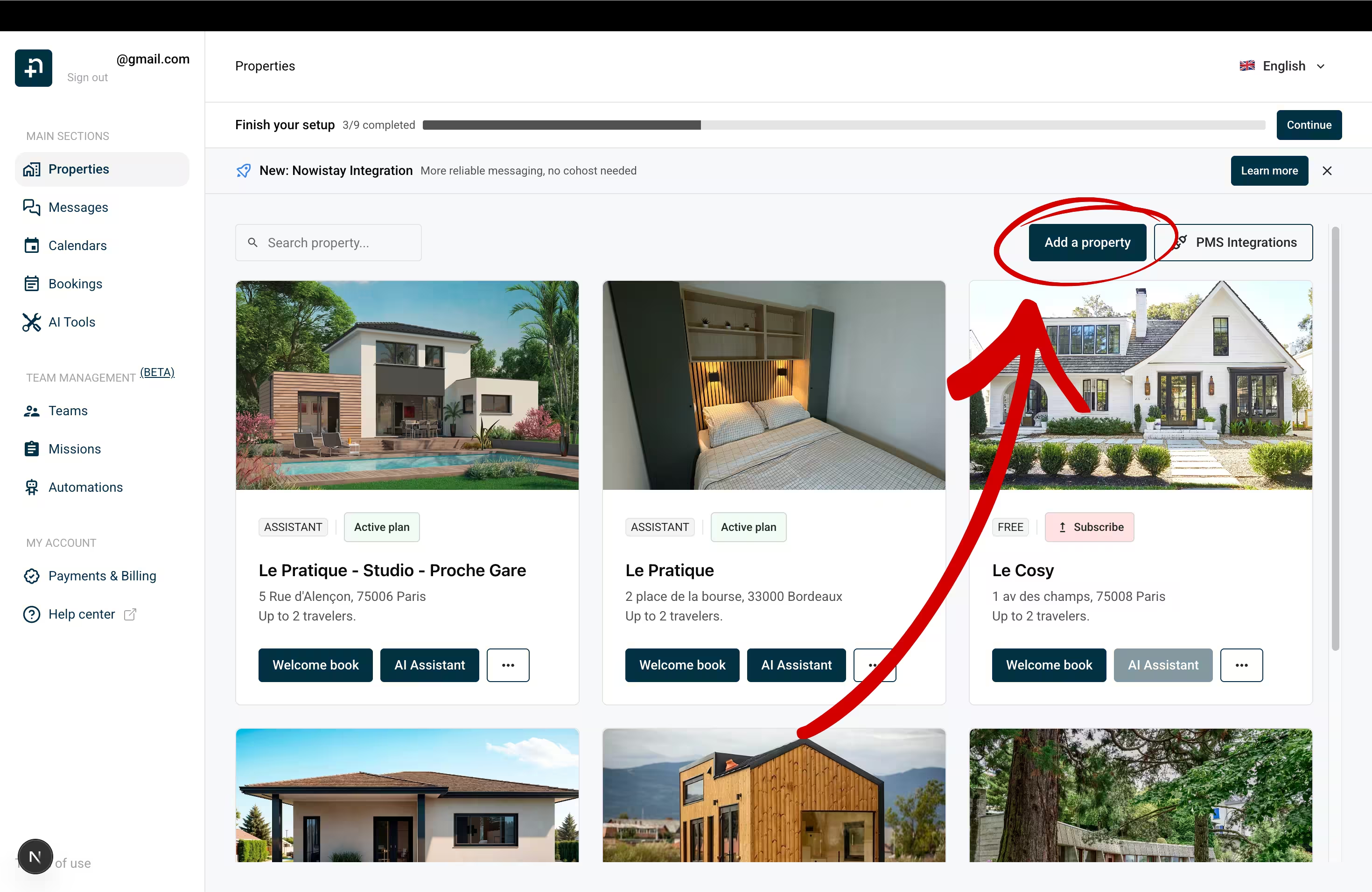
Go to your property list in Nowistay and click Add a property.
To How do you manage your bookings today?, answer I use a PMS, then to Do you want to keep your current PMS?, answer No, migrate.
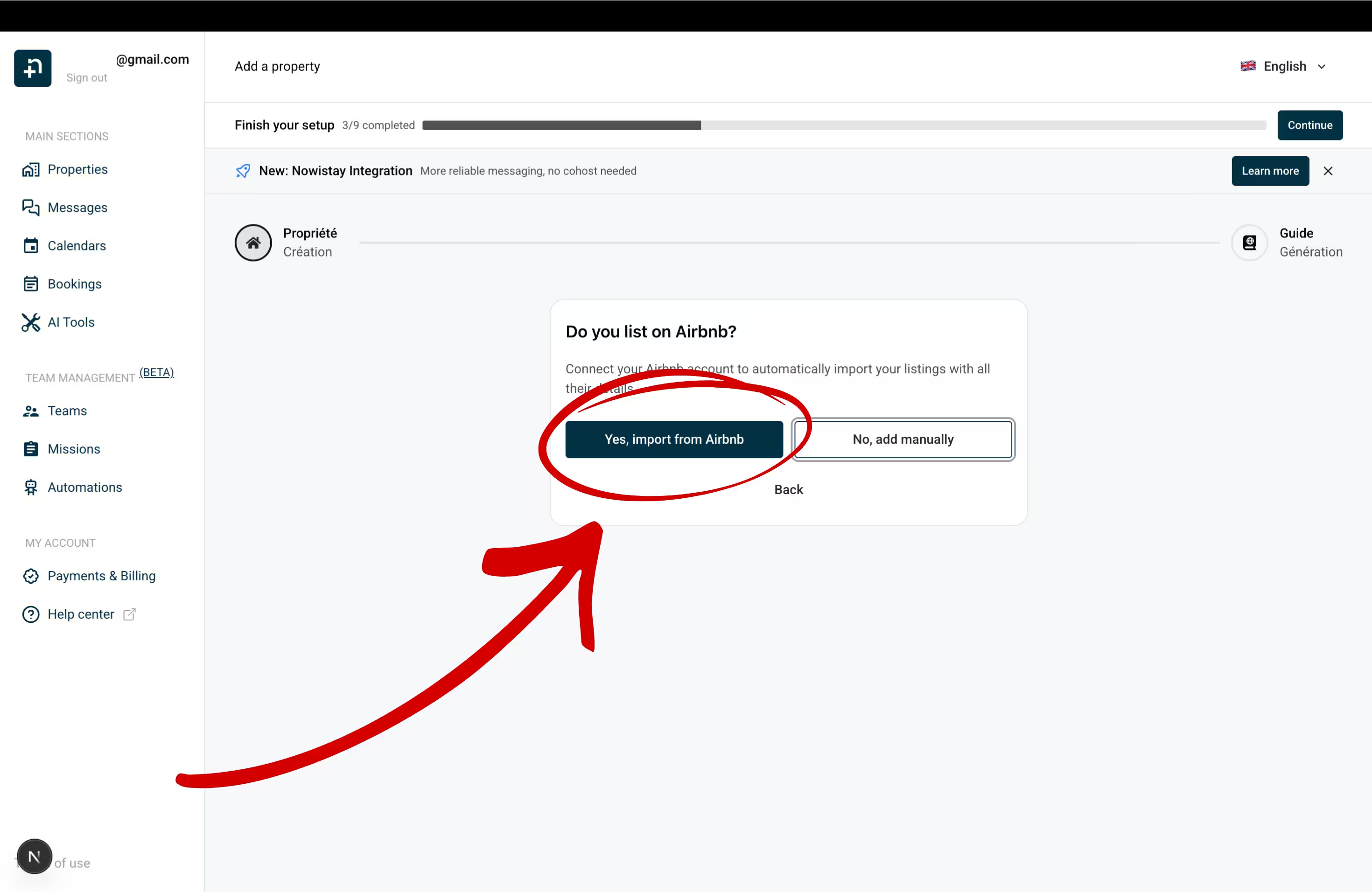
To Do you list on Airbnb?, click Yes, import from Airbnb.
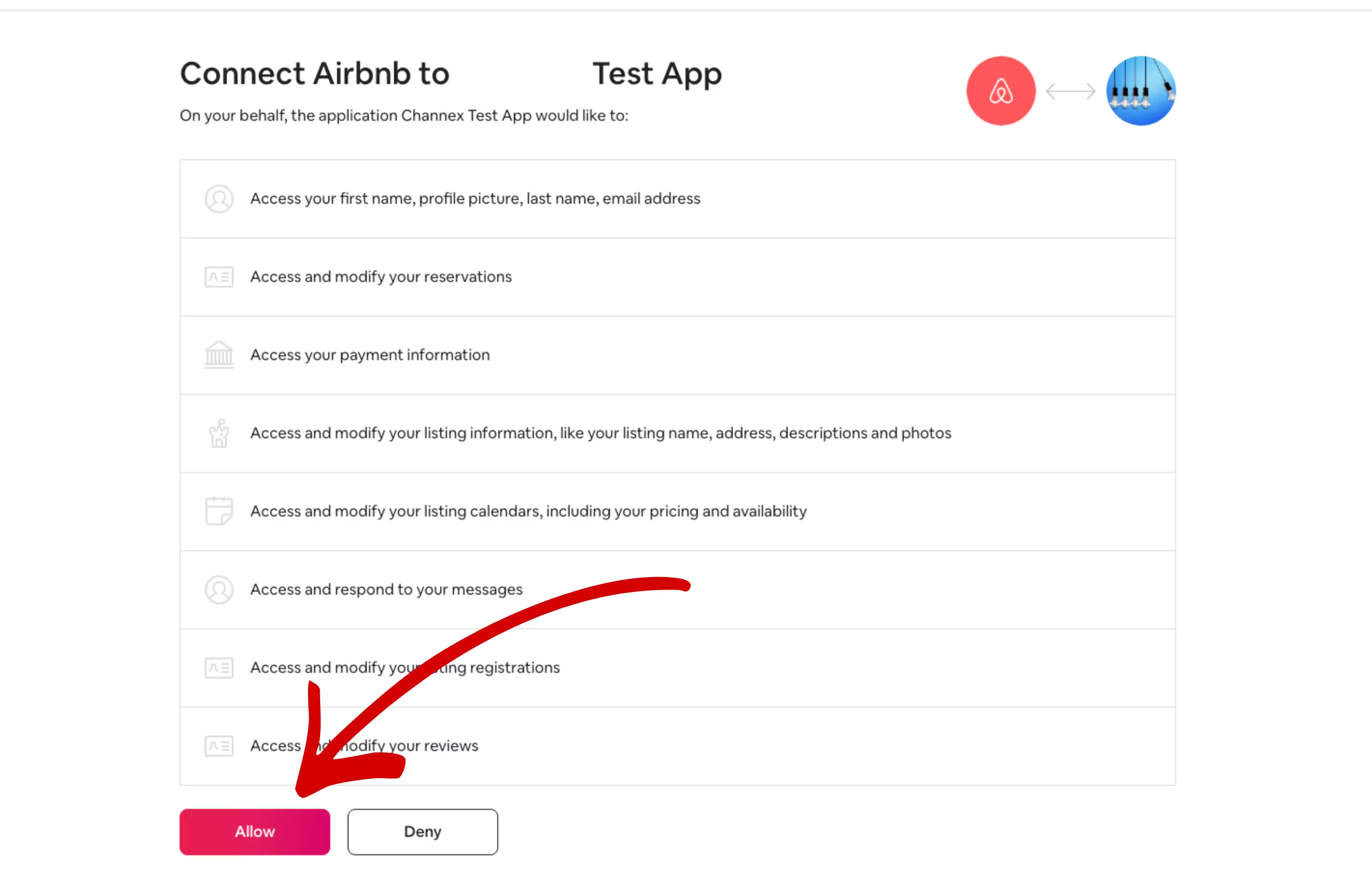
If an Airbnb account is already connected to Nowistay, its remaining listings are shown first; click Use another Airbnb account to connect a different one, or Connect with Airbnb when none is connected yet. You’ll be redirected to Airbnb: sign out of any other Airbnb account first (Airbnb authorizes the account currently logged in), log in with your owner account and click Allow to authorize the connection. Co-host only? Use Ask the owner to authorize instead, as explained in How to connect the AI Co-host to my Airbnb listing.
Back in Nowistay, select which Airbnb listing(s) to import and click Import (the button shows the number of selected properties).
Your property is created automatically with all your Airbnb data: name, photos, description, pricing, and more.
After connecting your property (via Option A or B), add Booking.com as an additional channel:
On the Properties page, click the … button on the property card, then Synchronization.
Click Add a booking platform (OTA) and select Booking.com in OTA Platform.
If not done yet, switch the connectivity provider to Channex.io in the Booking.com extranet (Step 2).
Enter your Hotel ID (shown in the Booking.com extranet header, next to your property name) and click Next.
Find your Hotel ID in the Booking.com extranet header
If your property has multiple room types, select the one to sync in Room Type.
Click Connect.
If Booking.com is the first channel of this property, Nowistay first asks for a Default night rate.
\1
Vrbo and Expedia are added the same way, with Add a booking platform (OTA). For Vrbo, your previous PMS must first be disconnected by Vrbo: see How to connect your Vrbo listing. For Expedia, select Channex as connectivity provider in Expedia Partner Central (Rooms and Rates > Connectivity Settings), then enter your Expedia Hotel ID in Nowistay.
Step 5: Set up your Welcome Guide
Nowistay will guide you to create a Welcome Guide: a digital guest handbook that the AI uses to answer questions.
Guide creation wizard (recommended): let the AI generate content from your Airbnb listing and PDF documents.
Copy from an existing guide: duplicate a guide from another property.
Create from scratch: build your guide manually.
Step 6: Your AI assistant is ready
Once your property and welcome guide are set up, your AI co-host activates automatically. It will:
Respond to all guest messages on Airbnb, Booking.com and WhatsApp
Handle booking inquiries from the very first message
Use your welcome guide to provide accurate answers
Work 24/7 without any action needed from you
Step 7: Verify your calendar and availability settings
This is critical. Right after connecting your OTA channels, check your calendar immediately. Some settings may have been reset during the disconnection from your previous PMS.
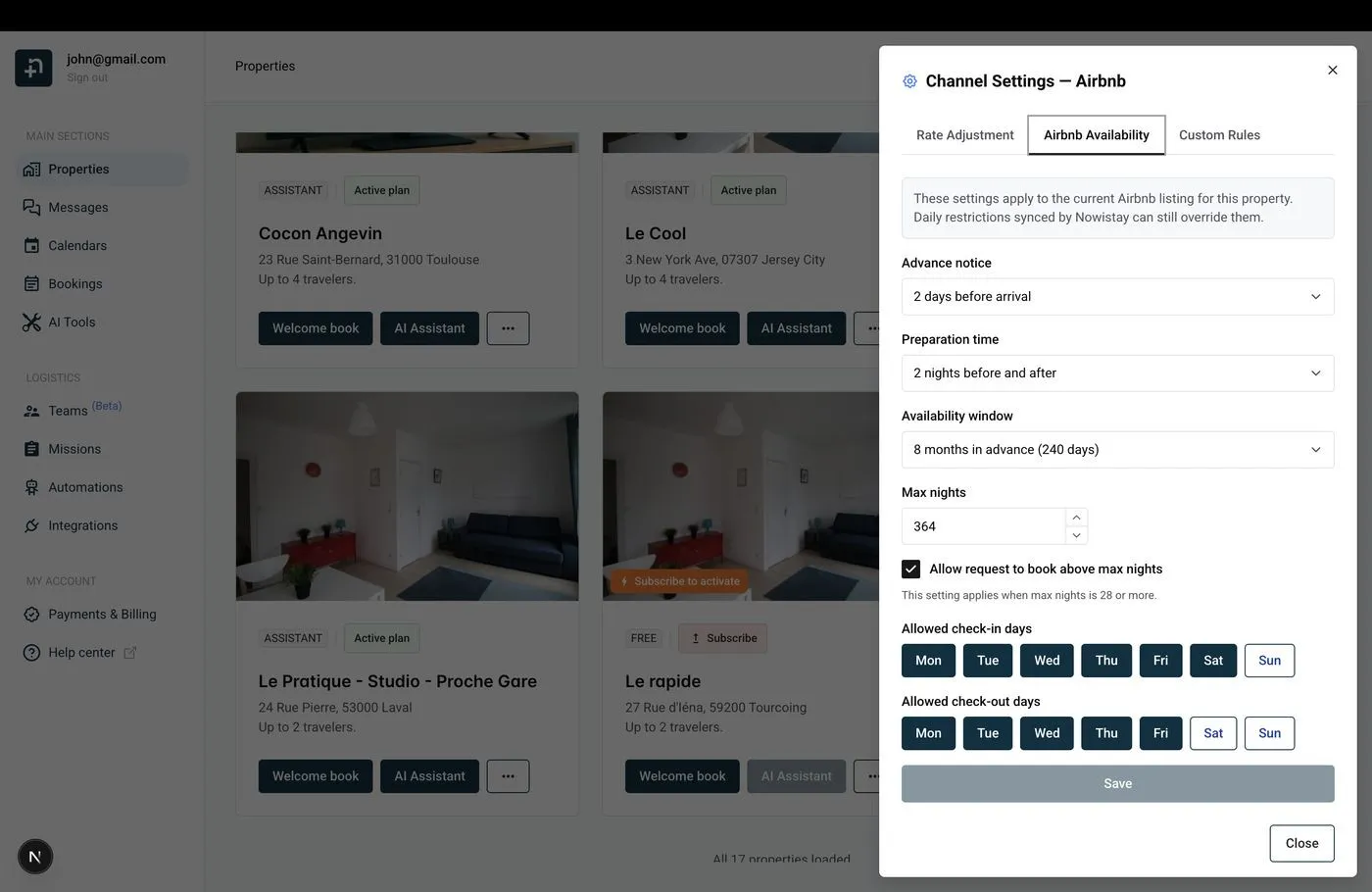
In your property’s Synchronization, click the gear icon (Channel settings) on the Airbnb connection, open the Airbnb Availability tab and verify:
Airbnb Availability settings in Channel Settings
Advance notice: how much lead time before a guest can book.
Preparation time: blocked nights between bookings for cleaning.
Availability window: how far ahead guests can book.
Max nights: maximum reservation length.
Allowed check-in / check-out days: restrict weekdays for arrival/departure.
Set up Rate Adjustment for Airbnb
If Airbnb switched your account to the host-only fee model (about 15.5%), compensate by adding a rate adjustment:
In Synchronization, click the gear icon (Channel settings) on the Airbnb connection, then the Rate Adjustment tab.
Enter a positive percentage (e.g., +15%).
Click Save.
Your calendar shows the base rate, but Airbnb receives the adjusted rate. Guests always see the total price, so zero impact on bookings.
Markup from your previous PMS: when you connect Airbnb, Nowistay copies your current Airbnb prices into its calendar. If your previous PMS added a markup on Airbnb prices, those marked-up prices became your base prices and would also be sent to your other channels: lower your base prices in the calendar, then put the markup back for Airbnb only with the Rate Adjustment.
Upcoming Airbnb and Booking.com reservations are retrieved automatically when you connect those channels. Direct bookings, bookings taken by phone or email, and Vrbo bookings made before the connection are not: import them from the CSV file you exported from your previous PMS, once your Airbnb and Booking.com reservations show in the calendar.
Go to Bookings, click the … button, then Import as CSV.
Choose the Property, select your file and click Analyze.
Match the columns (required: Arrival, Departure, First name, Last name, Amount, Currency, Status), check the Preview of the result, then click Import and Confirm import.
Duplicates and upcoming stays that overlap an existing booking are skipped automatically. Full guide: Import bookings from a CSV file.
Step 8: Connect PriceLabs for dynamic pricing
If you were using PriceLabs with your previous PMS for dynamic pricing, you’ll need to reconnect it to work with Nowistay. Since PriceLabs was linked through your old PMS, you need to disconnect it first, then set it up again with Nowistay.
Disconnect PriceLabs from your current PMS
Log into your PriceLabs account.
Remove the listings that were connected through your previous PMS.
Check your PMS documentation for specific disconnection steps if needed.
Reconnect PriceLabs with Nowistay
Once disconnected from your old PMS, add your listings again in PriceLabs: this time they’ll sync through Nowistay’s channel manager. Follow our step-by-step guide to set up the connection:
Your dynamic pricing rules and strategies in PriceLabs will continue to work, only the connection method changes from your old PMS to Nowistay.
Step 9: Connect your smart locks
If you use smart locks for guest access, Nowistay can automatically generate and share access codes with your guests. Nowistay supports the following smart lock brands, connected from Integrations > Smart locks:
Each integration generates unique access codes per booking and can share them automatically with guests through your automated message templates using the {{smartlock_code}} variable. The codes are time-limited to the guest’s check-in and check-out dates for maximum security.
If you had a smart lock integration through your previous PMS, set it up again in Nowistay by following the guide for your smart lock brand above.
Step 10: Recreate your automated messages
If you had automated emails in your previous PMS (booking confirmation, check-in instructions, checkout reminders), recreate them in Nowistay:
Go to Automations, then on the Guest Messages row click Manage messages.
Click Add message, or Generate with AI to auto-create a set of templates.
For each template, set:
Trigger event: Booking Confirmed, Check-in, Check-out or Manual
Timing (hours), with Before the event or After the event (e.g. 48 hours before check-in)
Subject and Message body: copy-paste from your old PMS and replace the variables
Replace your PMS variables with Nowistay variables
Most PMS systems use some form of dynamic placeholders. Nowistay uses the {{variable}} syntax. Here are the available variables:
Under Advanced options, Apply to bookings from restricts a template to Airbnb, Booking.com, Vrbo, Expedia or Direct booking. You can also filter by booking status, minimum stay or smart lock code availability.
Multilingual templates
Nowistay auto-detects the guest’s language and sends the matching version. Add translations for up to 15 languages, or use Translate from default for AI-powered translation.