Nowistay is compatible with the Model Context Protocol (MCP), the open standard that lets AI assistants like ChatGPT, Claude, and Gemini connect directly to your property management tools. Once connected, you can talk to your favorite AI assistant and ask it to read your bookings, update your calendar, manage your welcome guide, create cleaning missions, and much more, all without leaving the conversation.
Nowistay is an official app in ChatGPT and is listed in the Claude directory. This guide walks you through the setup for each platform, step by step.
Prerequisites
Before you begin, make sure you meet these two requirements:
- Your properties must be connected via Nowistay PMS. Only properties using Nowistay as their channel manager are accessible through the MCP integration. Properties connected through other channel managers (Beds24, Smoobu, Lodgify) are not available via MCP.
- You need an active AI Channel Manager subscription. The MCP integration is part of the AI co-host feature. If you don’t have an active subscription, you’ll see an error when trying to authenticate.
You can check both requirements from your Integrations page in the Nowistay app.
Setup with ChatGPT
Nowistay is an official ChatGPT app. You add it straight from the ChatGPT plugin directory and connect your account. Open the Nowistay app in ChatGPT, or follow these steps:
- Open ChatGPT on the web and click Plugins in the left sidebar.
- Type “Nowistay” in the search bar, then select the Nowistay app from the results.
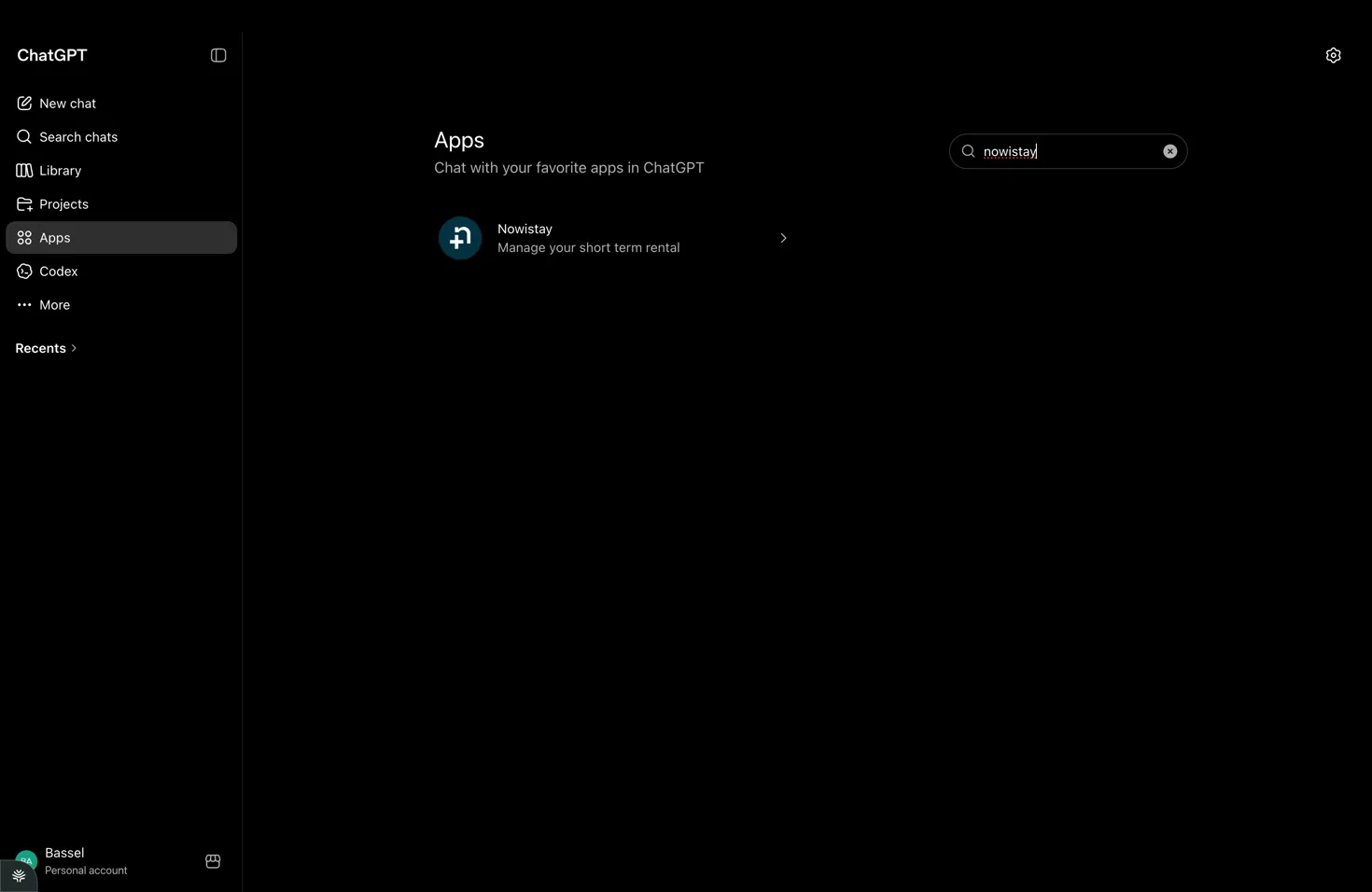
- On the Nowistay page, click Install plugin or Connect.
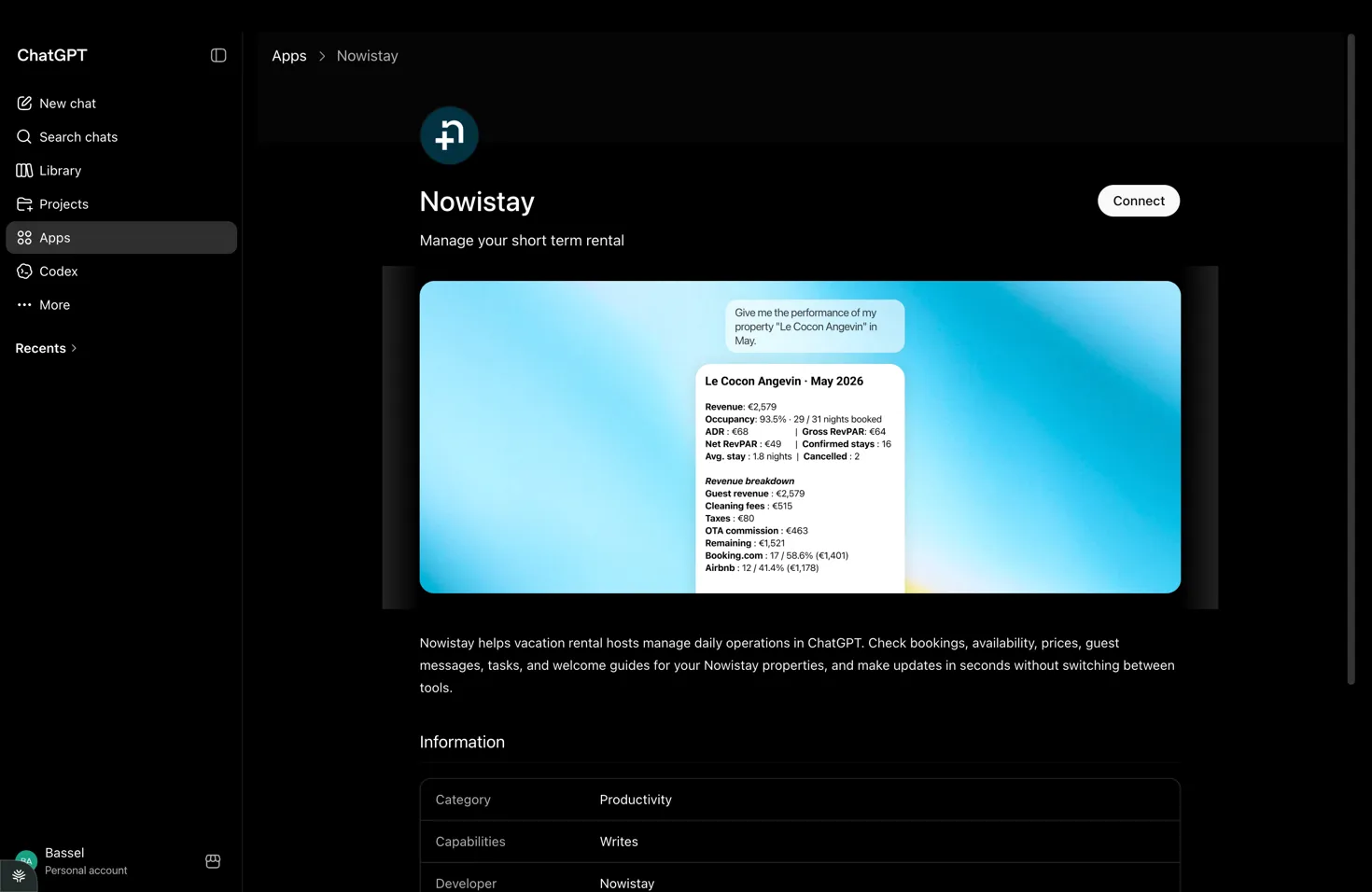
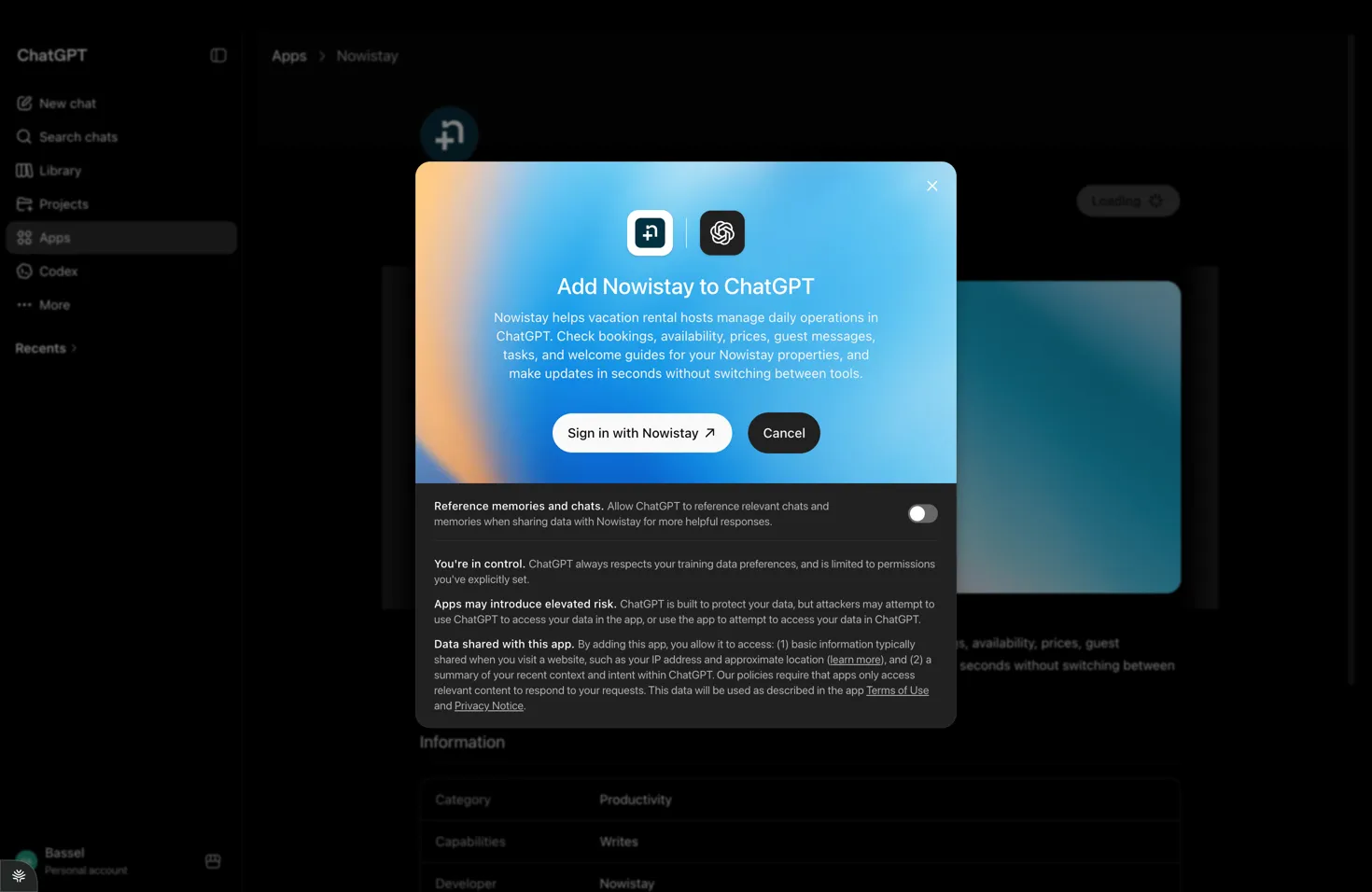
- In the “Add Nowistay to ChatGPT” window, click Sign in with Nowistay.
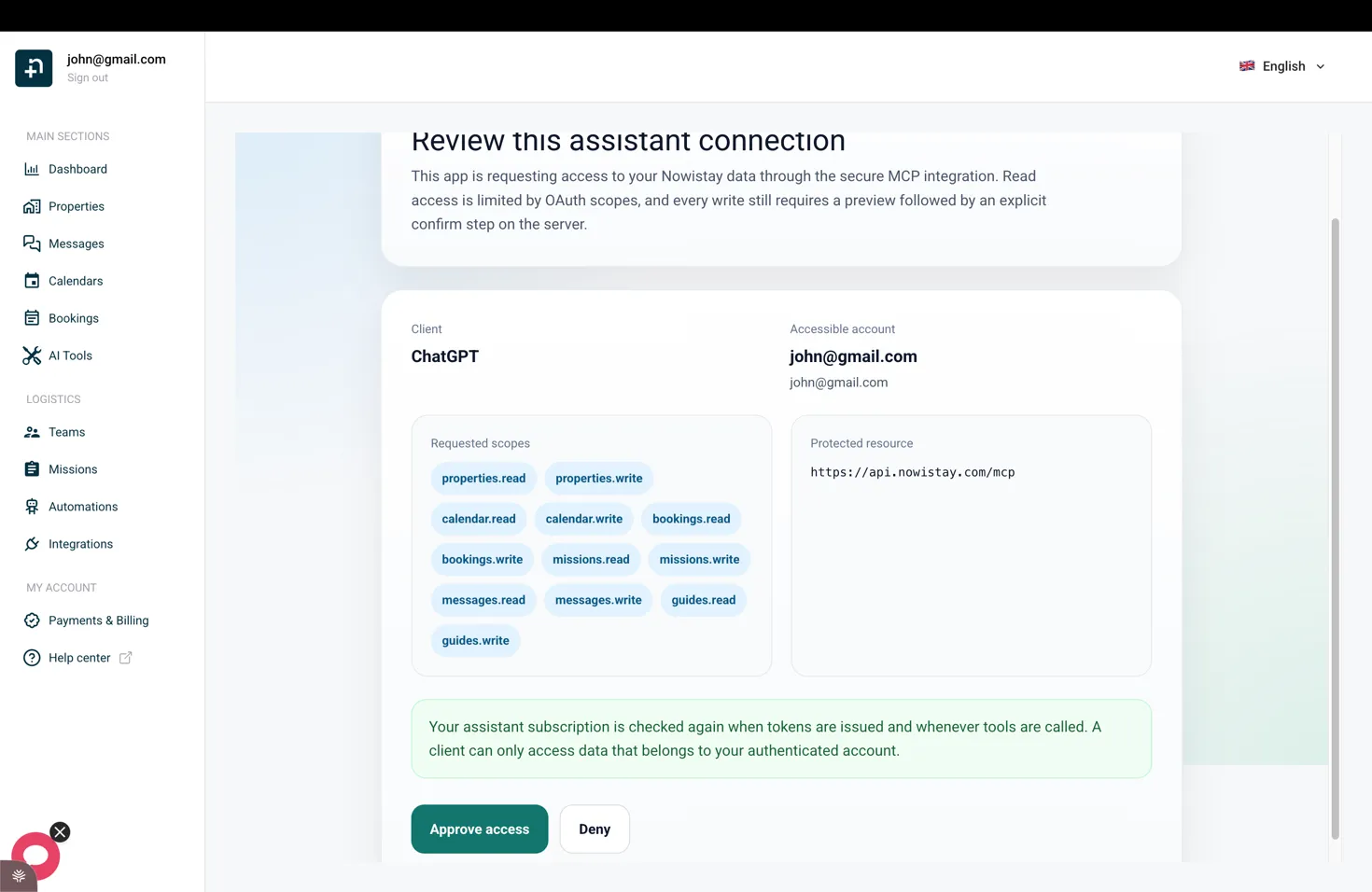
- You are taken to Nowistay’s secure “Review this assistant connection” screen. Check the requested permissions, then click Approve access.
- ChatGPT confirms “Nowistay is now connected.” Click Start chat to begin.
- In any new chat, select Nowistay from the prompt bar, then ask about your bookings, prices, calendar, guest messages, missions, or welcome guide.
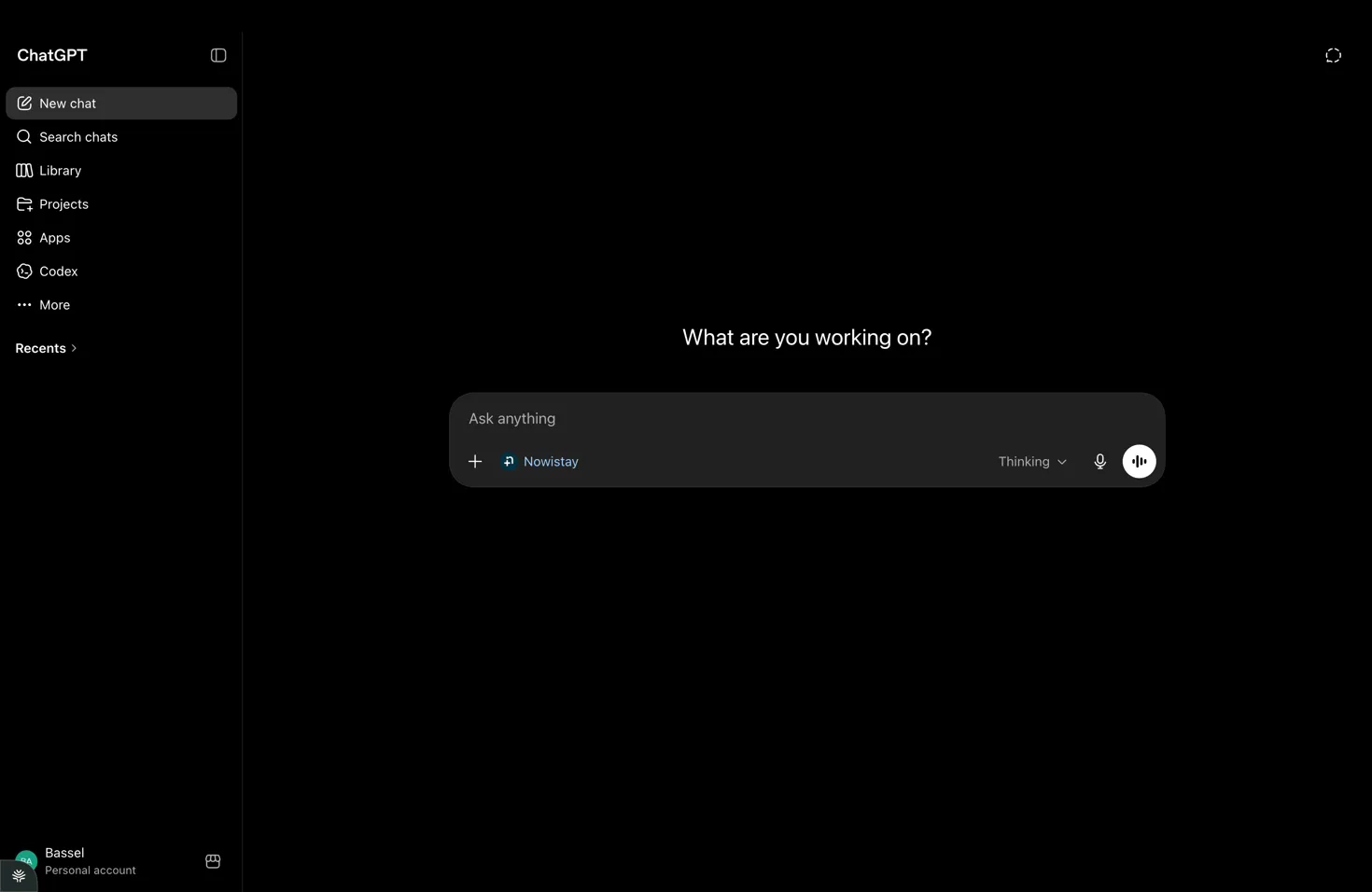
Note: Plugins and the actions available depend on your ChatGPT plan. Every write action shows you a preview and asks for an explicit confirmation before anything changes in your account.
Setup with Claude (web, desktop, or mobile app)
Nowistay is listed in the Claude directory, so you don’t need to paste a server URL. Open the Nowistay listing in the Claude directory, or find it from the app:
- Open Claude on the web (claude.ai) or in the desktop app, then go to Customize > Connectors.
- Click Discover, type “Nowistay” in Search connectors, then open the Nowistay connector.
- Click Connect to Claude. On a Team or Enterprise plan, an organization Owner first adds Nowistay for everyone with Connect for your team, then each member connects with their own Nowistay account.
- Sign in to Nowistay, check the requested permissions, then click Approve access. Nowistay now shows as Connected under Your connectors.
- Start a new chat and ask about your bookings, prices, calendar, guest messages, missions, or welcome guide. If Claude doesn’t use Nowistay, click + in the message box, open Connectors, and turn Nowistay on.
Once connected, Nowistay is also available in the Claude mobile app with the same Claude account.
Add the Nowistay plugin (recommended)
The Nowistay plugin adds ready-made skills on top of the connector, so Claude knows how to handle everyday hosting tasks: a daily brief of arrivals, departures, and urgent missions, calendar and rate updates, direct bookings, guest replies, cleaning and maintenance missions, welcome guide edits, the knowledge your AI co-host answers from, and reports across all your properties.
- Go to Customize > Plugins, click Discover, search for Nowistay, then click Add.
- Open the plugin’s Connectors tab and check that Nowistay shows Connected. If it doesn’t, connect it from this tab.
Added Nowistay earlier as a custom connector with the server URL? It keeps working. To switch to the directory version, remove the custom connector in Customize > Connectors (three-dot menu, then Remove) and connect Nowistay from the directory.
Setup with Claude Code (terminal)
Claude Code uses the connectors and plugins of your Claude account. If you added Nowistay in the Claude app (see above), you only need to sign in to Claude Code with the same account:
- Open Claude Code signed in with the same Claude account. Nowistay loads automatically in new sessions. In a session that is already open, type /reload-plugins.
- Type /mcp to check that Nowistay is listed. If it shows as needing authentication, select it, choose Authenticate, sign in to Nowistay, then approve access.
- You’re ready. Ask Claude to check your bookings, update your calendar, send guest messages, or edit your welcome guide.
Using Claude Code with an API key instead of a Claude account? Add the server with this command, then follow steps 2 and 3:
claude mcp add --transport http nowistay https://api.nowistay.com/mcp
Setup with other AI assistants
Any AI assistant that supports the MCP protocol with HTTP transport and OAuth authentication can connect to Nowistay. This includes tools like Google Gemini, Cursor, Windsurf, and more as they add MCP support.
The principle is always the same:
- Find the MCP or connector settings in your AI tool.
- Add a new server with the URL:
https://api.nowistay.com/mcp
- Choose OAuth as the authentication method.
- Sign in to Nowistay and approve access.
What the connection can do
The permissions shown during connection cover only the Nowistay features available to your eligible properties. Depending on the permissions you approve, your assistant can:
- Read properties, calendars, availability, rates, bookings, missions, mission reports, and guest conversations.
- Create or update direct bookings, with or without a payment link.
- Read guest profiles and create a new profile when needed.
- Review the paid extras catalog and, when explicitly requested, extras purchased for a booking. Catalog configuration remains in Automations > Upsells.
- Read, create, update, and copy private property questions and answers.
- Read and improve welcome guides, create pages, preserve structured blocks, and add optimized images.
- Prepare calendar, property, mission, message, booking, guide, and knowledge-base changes for your approval.
If new capabilities do not appear on an older connection, disconnect and reconnect Nowistay so you can review and approve the latest permissions, then start a new chat.
How authentication works
When you connect an AI assistant for the first time, you’ll be redirected to the Nowistay login page. After signing in, you’ll see an authorization screen showing:
- The name of the application requesting access (e.g., “ChatGPT” or “Claude”).
- Your Nowistay account information.
- The permissions the app is requesting, such as reading bookings, updating the calendar, or managing missions.
Click “Approve” to grant access. The connection is secure: your password is never shared with the AI assistant, and you can revoke access at any time.
Privacy and control
Nowistay applies data minimization to every request. The assistant receives only the operational information needed for the task and only for eligible properties on your account.
- Guest contact details are omitted by default and returned only when you explicitly ask for them for a relevant task.
- Postal addresses, private guest notes, internal account identifiers, access tokens, and technical synchronization details are not exposed through the connector.
- A booking’s internal note is shared only when you explicitly ask to read it for that booking.
- Never enter payment card details, government identification numbers, health or biometric information, passwords, access tokens, or unrelated personal information in a connector request.
- Actions that change data are prepared first and require your explicit confirmation before they are applied or sent.
Traffic is encrypted with HTTPS/TLS. Your Nowistay password is never shared with the AI provider, and you can revoke the connection whenever you want.
Troubleshooting
- “Assistant subscription required”: make sure your AI Channel Manager subscription is active. Check your subscription settings.
- “Property not found”: the property must be connected via Nowistay PMS. Properties using other channel managers are not available through MCP.
- The Nowistay app doesn’t appear in ChatGPT: click Plugins in the left sidebar and search for “Nowistay”. If your menu still shows Apps instead of Plugins, update the ChatGPT app: very old versions use the former name.
- Nowistay doesn’t appear in the Claude directory: on a Team or Enterprise plan, ask an organization Owner to add Nowistay for your team. You can also add it as a custom connector: in Customize > Connectors, click + Add, then Add custom connector, name it Nowistay, and paste
https://api.nowistay.com/mcp.
- Menu names look different: menu labels may vary slightly depending on the app version and your plan.
- New tools or permissions are missing: disconnect Nowistay from your AI assistant, reconnect it, approve the updated permissions, and start a new chat.
