This guide walks you through every step of moving from Hospitable to Nowistay as your channel manager and property management system. Plan about 20 minutes per property, plus the time to export your data from Hospitable.
Airbnb accepts only one channel manager per account, and Booking.com, Vrbo and Expedia only one per property, so each channel has to move from Hospitable to Nowistay. The fastest and most reliable way does not depend on Hospitable at all: you remove Hospitable’s access from your Airbnb account and you switch the connectivity provider in your Booking.com extranet. No support ticket, no waiting. The Hospitable-specific instructions below cover everything else: what to export, where your message templates and booking website live, and how to cancel your subscription.
Hospitable tip: keep your Hospitable subscription active until the very end. When it ends, Hospitable disables channel connections and blocks availability on Vrbo listings that use its partner connection. Hospitable’s interface is in English: its labels are given as they appear.
Moving from a different tool? Read the general guide: How to migrate from your PMS (channel manager) to Nowistay.
Remove the old Airbnb connection and connect Nowistay in one sitting, ideally at a quiet time of the day: in between, nobody updates your Airbnb calendar.
Hospitable does not transfer your data to another tool, and some of it disappears when you disconnect a channel or when the subscription ends. Save it first:
Also have these ready:
Details: What changes when you connect Nowistay as your channel manager.
This cuts the connection from Airbnb’s side. It works whatever the state of your Hospitable account, and it disconnects all your listings in one go.
Airbnb disconnects every listing that was linked to Hospitable at once. Older Airbnb pages call this section Privacy & sharing and Services: it is the same place.
Do not skip this step: Airbnb allows only one channel manager per account, so connecting Nowistay fails while Hospitable’s full connection is still in place.
Prefer to start from Hospitable? In Hospitable, go to Settings > Channel connections, click Edit next to Airbnb and select Delete. Hospitable then removes all the listings of that Airbnb account from Hospitable, with their reservations and guest conversations, and stops scheduled messages: export first.
After a channel manager is disconnected, Airbnb may put some settings back to their default values (minimum stay, maximum stay, closed to arrival or departure). You will check them in Step 6.
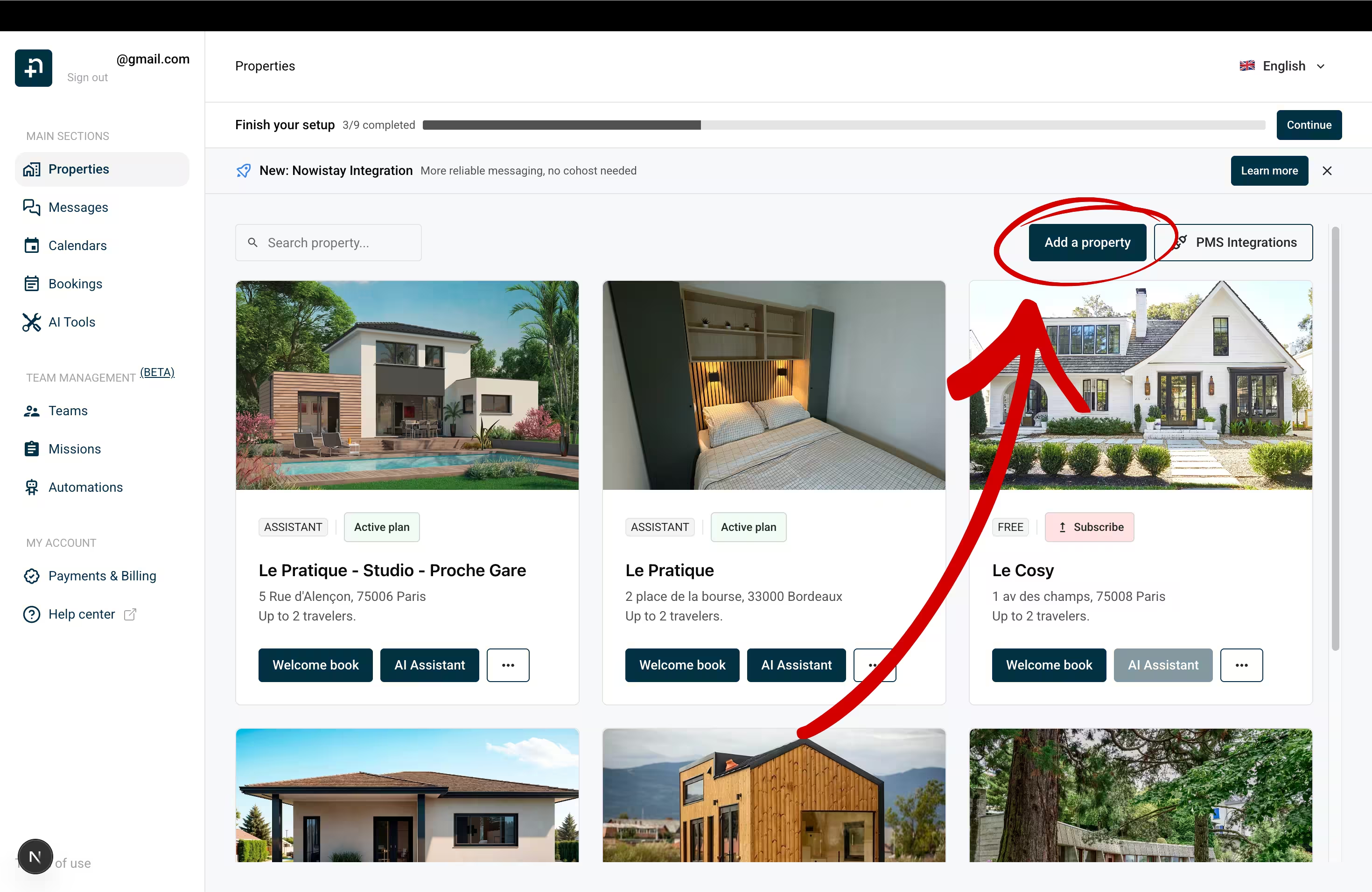
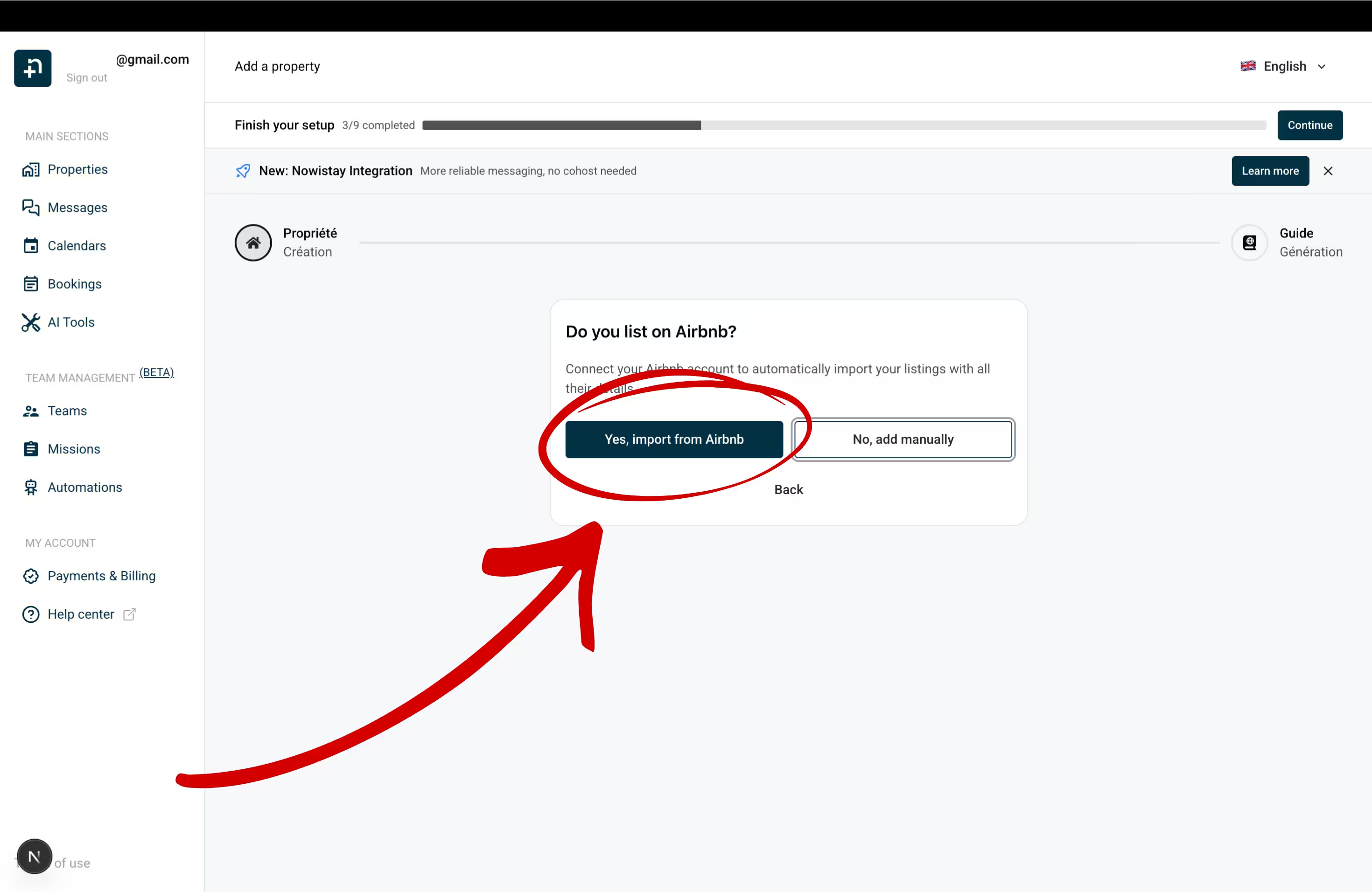
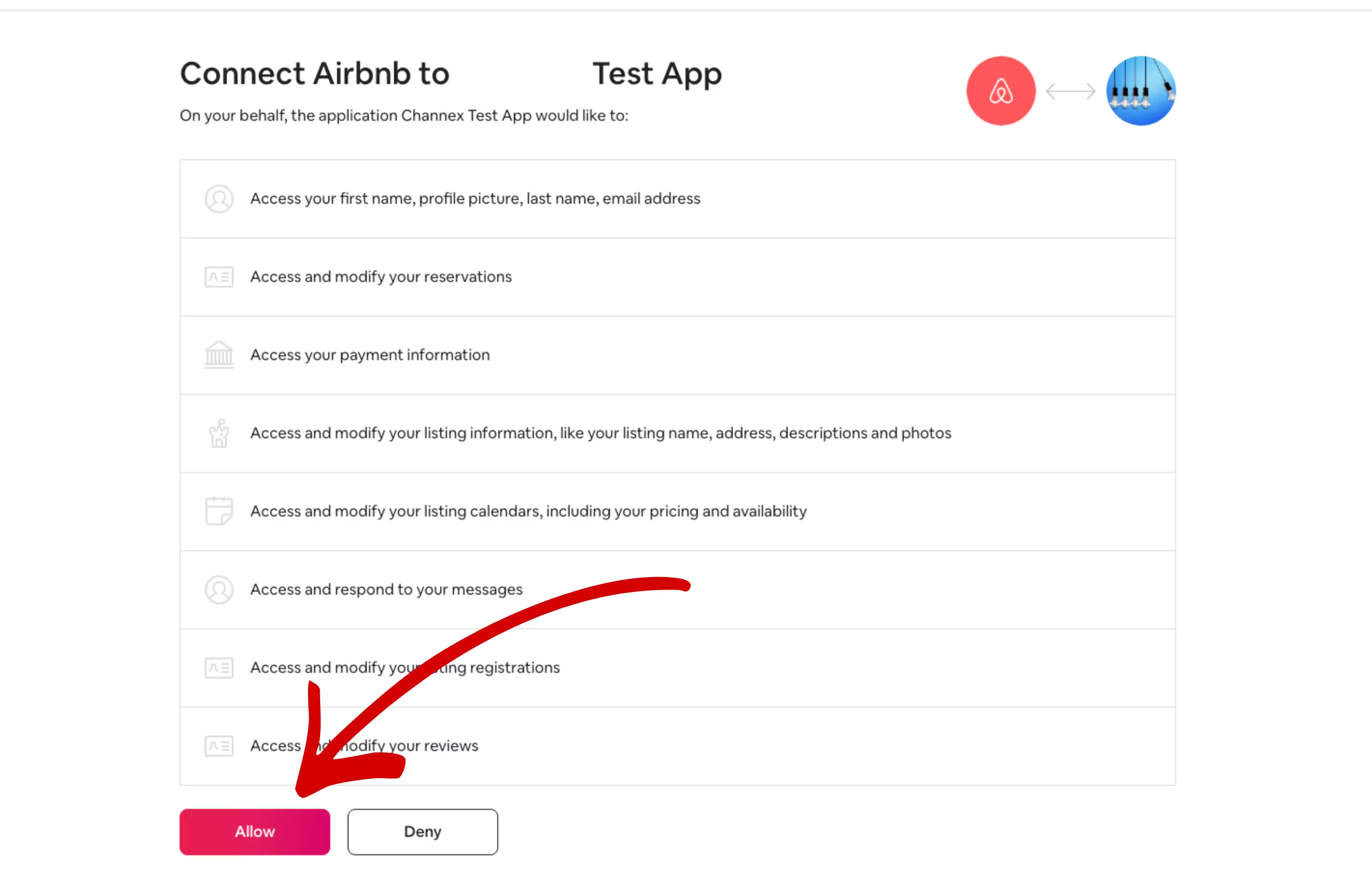
Each property is created with its Airbnb data: name, photos, description, prices and availability. Detailed walkthrough: Connect Airbnb to Nowistay.
Booking.com lets you go straight from Hospitable to the new provider. Your property stays connected to Hospitable until the switch is complete, so it never goes unmanaged.
Before you start: remove any calendar (iCal) imported in the extranet, under Rates & Availability > Calendar sync. Imported calendars block a provider change.

Repeat this for each Booking.com property, even if you already did it for another one.
If Booking.com is the first channel of this property, Nowistay first asks for a Default night rate. Detailed walkthrough: Connect Booking.com to Nowistay.
Hospitable links Booking.com listing by listing. If the Booking.com listing was merged with other channels in a Hospitable property, go to Properties > the property > three dots on the Booking.com listing > Remove from property. If the Booking.com account still shows with 0 listings under Channel connections, ask Hospitable support to remove it.
Links in messages: Booking.com only lets guests open links that you have allowed in the extranet. If your welcome guide link is not clickable, see Welcome guide links not clickable on Booking.com.
Check which connection you have: if the Vrbo channel shows an Advertiser ID in Hospitable, it is the Vrbo Partner Connection.
Then connect Vrbo in Nowistay: Synchronization > Add a booking platform (OTA) > Vrbo, enter your Vrbo username or email and Vrbo password, click Next, choose the phone number for the SMS code, click Request verification code, enter the code and click Verify code, then select your listing and click Connect. Vrbo does not share bookings made before the connection: add them with the CSV import (Step 5). Guest messaging is not available through Vrbo, so reach Vrbo guests by email or WhatsApp. Detailed walkthrough: How to connect your Vrbo listing.
Hospitable only syncs Expedia by calendar (iCal), so there is no Hospitable connection to remove on Expedia: delete the Hospitable calendar links in your Expedia settings, then select Nowistay’s connectivity partner in Partner Central as below.
To switch Expedia to Nowistay: in Expedia Partner Central, select the property, go to Rooms and Rates > Connectivity Settings, click Change Provider, search for Channex, click Next, then confirm with Change provider. Make sure Channex manages both rates and availability and booking retrieval. If Connectivity Settings is missing, open a ticket with Expedia of type Room, Rates and Availability. Then, in Nowistay: Synchronization > Add a booking platform (OTA) > Expedia, enter your Expedia Hotel ID, choose the Minimum stay rule (Arrival or Through), select the room type and click Connect.
Upcoming Airbnb and Booking.com reservations arrive in Nowistay by themselves when you connect those channels. What does not come back on its own: direct bookings and bookings taken by phone or email in Hospitable, Vrbo bookings made before the connection, and owner stays. Import them from a CSV file so your calendar is complete and no one can book those nights again.
Good to know: imported bookings are added as direct bookings and block the nights on all your channels. Duplicates (same reservation number, or same dates and same guest) and upcoming stays that overlap a booking you already have are skipped, so re-importing the same file is safe. Guests do not receive a booking confirmation, but your check-in and check-out messages are scheduled for their upcoming stays. A wrong import can be undone from Import history > Delete & revert. Full guide: Import bookings from a CSV file.
Right after connecting your channels, check that prices and availability are right. Some values may have been reset when Hospitable was disconnected.
Markup on Airbnb prices: when you connect Airbnb, Nowistay copies your current Airbnb prices into its calendar. If your Airbnb prices included a markup, those marked-up prices became your base prices and would also be sent to your other channels: lower your base prices in the calendar, then add the markup back for Airbnb only with the Rate Adjustment setting (below).
Guide: How to manage availability and prices from the calendar.
On the Properties page, click … then Property infos, and check Default night rate, Earliest arrival time (check-in), Latest departure time (check-out), the default minimum and maximum number of nights and the Cut-off time. Click Save.
In Synchronization, click the gear icon (Channel settings) on your Airbnb connection:
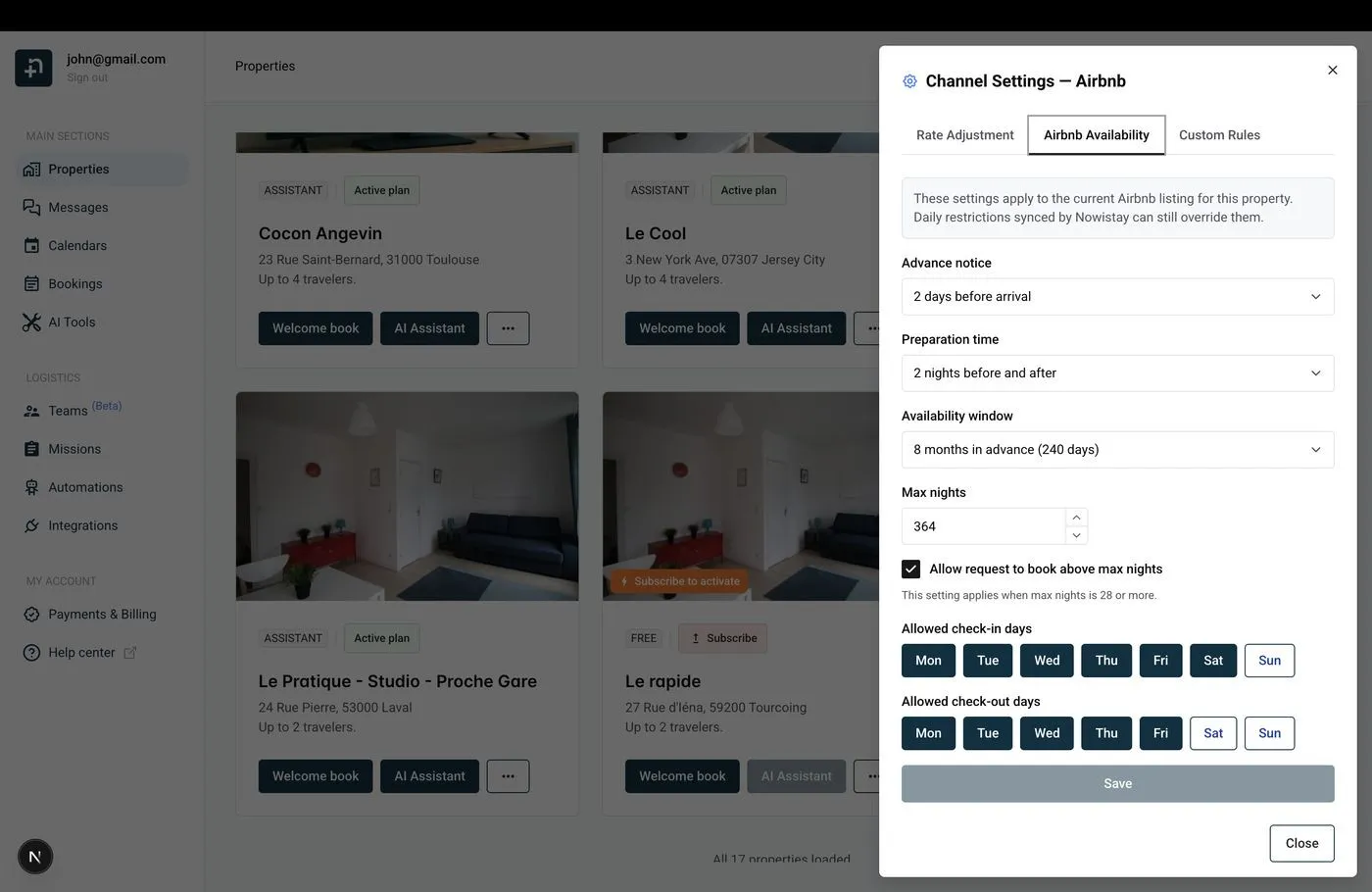
Guide: Airbnb availability settings.
Nowistay then helps you create your welcome guide, the digital guest handbook the AI co-host uses to answer questions. Let the AI generate it from your Airbnb listing and your PDF documents, copy a guide from another property, or start from scratch. Paste in what you used to send from Hospitable: arrival instructions, Wi-Fi, house rules, parking, local tips. Your AI co-host then answers guests on Airbnb, Booking.com, Expedia, WhatsApp and email, 24/7, from the first inquiry. Guide: Create your digital welcome guide with AI.
In Hospitable, your messages are under Guest experience > Messaging (tabs Rules, Custom codes and Pending messages), and saved texts under Guest experience > Canned responses. Hospitable does not transfer them: copy each rule’s text, timing and settings.
Nowistay sends each message in the guest’s language: add languages to a template and use Translate from default to translate it with AI.
Hospitable shortcodes use percent signs, Nowistay variables use double braces. Your custom codes (%%name) become welcome guide content or property variables.
%guest_first_name% → {{guest_first_name}}%guest_full_name% → {{guest_full_name}}%adult% or %guests% → {{guest_count}}%children% → {{number_of_children}}%check_in% → {{arrival_date}}%check_out% → {{departure_date}}%check_in_hour% → {{check_in_time}}%check_out_hour% → {{check_out_time}}%nights% → {{number_of_nights}}%listing_name% or %property_name% → {{property_name}}%listing_full_address% → {{property_address}}%reservation_code% → {{reservation_number}}{{currency}} for the currency): %total% → {{booking_amount}}%smartlock_code% → {{smartlock_code}}%guidebook% or %guest_portal% → {{welcome_guide_url}}Nowistay also offers {{arrival_day_name}}, {{days_to_checkin}}, {{host_first_name}}, {{whatsapp_link}}, {{identity_check_link}} (guest identity verification) and {{deposit_payment_link}} (security deposit). Wi-Fi codes, parking details and other fixed property information belong in your welcome guide, or in property variables you can insert from the variable picker.
Example: to send a message at 10:00 two days before arrival with a 16:00 check-in, choose Check-in, Before the event, 54 hours.
Once your Nowistay messages are live, turn off your Hospitable rules (Guest experience > Messaging) so guests don’t receive everything twice.
Guide: How to set up automated guest messages.
Hospitable Dynamic Pricing is set per property: in each property calendar, open Dynamic Pricing in the right sidebar, click Turn Off dynamic pricing, then Yes. Do it once your channels have moved, because turning it off restores your previous prices. PriceLabs sent its prices through Hospitable, so it has nothing left to update once Hospitable is disconnected: add your listings again through Nowistay.
To connect PriceLabs to Nowistay: go to Integrations, open the Pricelabs card, click Configure then Generate Key and copy the key. In PriceLabs, click Add Your Listings, select Channex, paste the key and click Connect. A property appears once it is on Nowistay PMS with at least one connected channel. Your PriceLabs strategies keep working, only the connection changes. Guide: How to connect PriceLabs for dynamic pricing.
In Nowistay, go to Integrations > Smart locks and click Connect on your brand: Nuki, igloohome, Tedee, TTLock, Homeit, and the Premium connection for Schlage, Yale, August and KeyNest. Nowistay creates a code for each booking, valid from check-in to check-out, and sends it with the {{smartlock_code}} variable.
In Hospitable, unmatch each lock (Devices > Overview > Smart Locks > the lock > Edit, uncheck the property, Save) or delete the lock account (Devices > Smart Locks > Connected accounts > … > Delete), so only Nowistay sends codes.
To stop Hospitable Direct: unpublish your site (Unpublish in the Direct site settings), turn off Enable widgets, and remove the widget code from your own website. Domains are under Settings > Brands > Domains: if your own domain’s nameservers point to Hospitable, point them back to your registrar or new host. The guest portal on stay.hospitable.com stops too: send upcoming guests your Nowistay welcome guide instead.
To take direct bookings with Nowistay: go to Integrations > Direct Booking > Configure, connect your Stripe account (Connect Stripe Account), click Create widget (Single property or Multiple properties), then copy the Embed code and paste it where the old widget was. In the widget settings, choose Full payment or Split payment, and add your taxes and discounts. The widget works on WordPress, Webflow, Wix, Squarespace or plain HTML. Guide: How to set up direct booking on your website.
Do this last, once Airbnb, Booking.com, Vrbo and Expedia all show as connected in Nowistay and your direct bookings are imported. Disconnecting channels does not stop Hospitable billing: you have to cancel.
Only the account’s primary user can cancel. Monthly plans end at the end of the billing period and annual plans at the end of the 12-month term, with no prorated refund. Your account then becomes read-only, with channel connections and automations disabled. To delete it, contact Hospitable support.
