Nowistay can manage up to two smartlock doors per property, including a mix of providers. Use Nuki for the apartment door, the building entrance or both, with a clear name and settings for each door.
Nuki, Tedee and compatible Yale, Schlage and August devices support guest link opening and the host’s remote opening drawer. TTLock locks connected to a gateway and igloohome locks connected to a Bridge support them too; without a gateway or Bridge, these locks provide keypad codes only. The available methods depend on the connected device and integration.
Note: The smart lock integration only works with properties configured with Nowistay PMS (channel manager). Properties connected via direct OTA integration or a third-party PMS (Beds24, Lodgify, Smoobu) will not appear in the lock configuration panel. If you’re currently using another PMS, see how to migrate to Nowistay PMS.
If you haven’t already, install your Nuki Smart Lock on your door and set it up using the Nuki App (available on iOS and Android).
Your lock needs to be connected to the internet. You can do this in two ways:
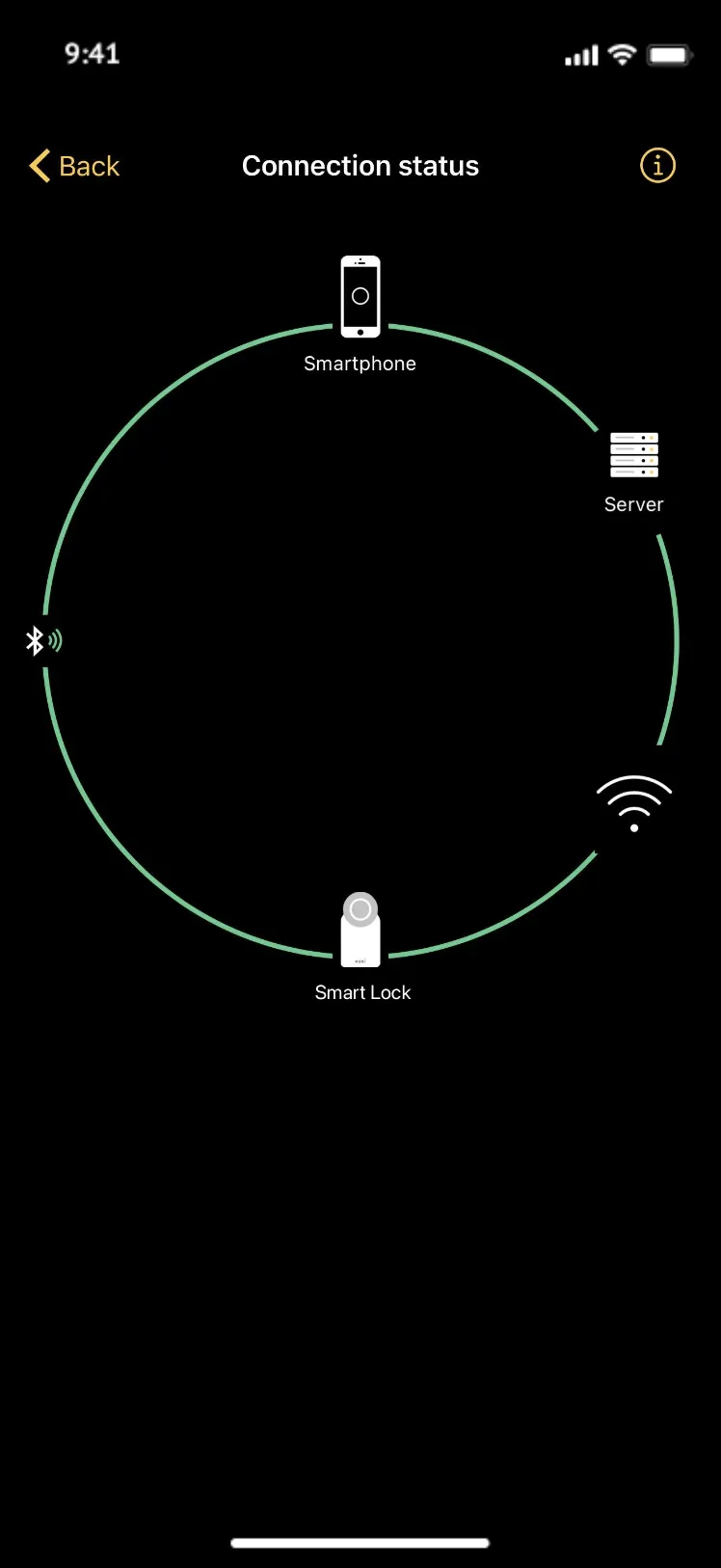
Once connected, open the Nuki App and go to your lock’s Settings → Connection status. You should see the device shown as connected to the server.
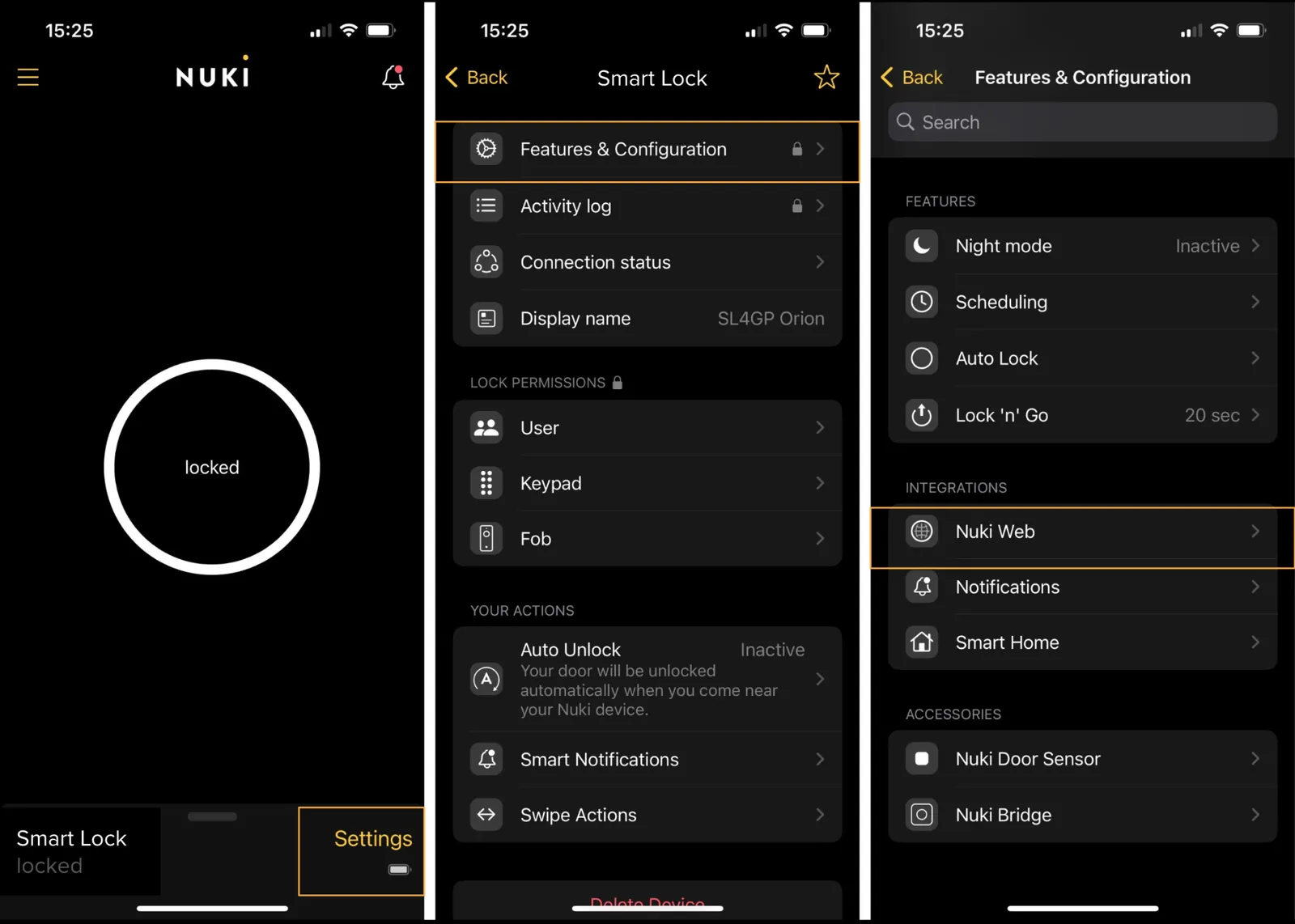
Nuki Web is the online platform that allows your lock to be controlled remotely, which is what Nowistay uses to create and manage keypad codes.
To connect your lock to Nuki Web:
If you don’t have a Nuki Web account yet, you can create one during this process. Once activated, you can log in to Nuki Web at web.nuki.io.
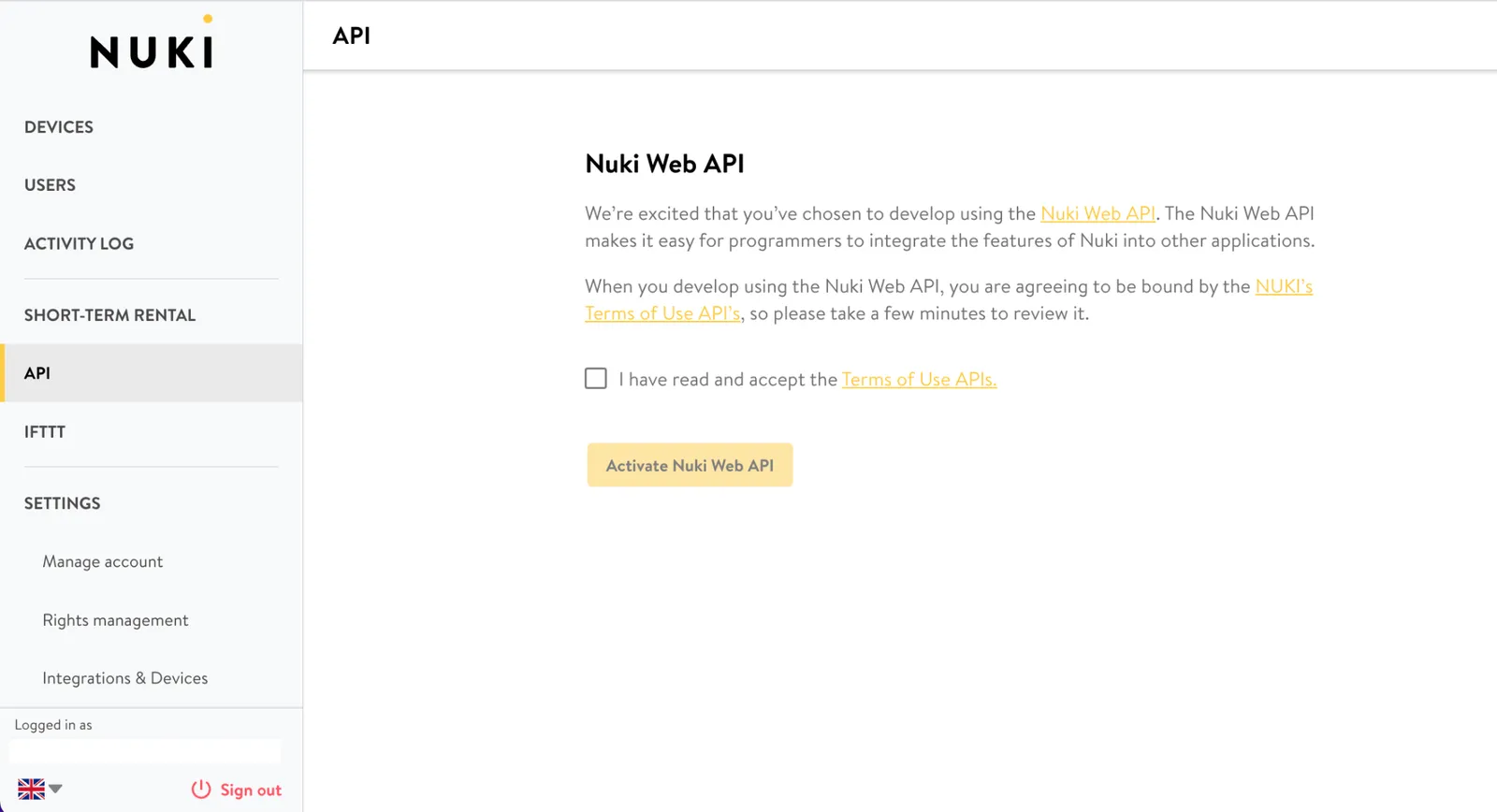
Now that your lock is connected to Nuki Web, you need to activate the API so that Nowistay can communicate with your lock.
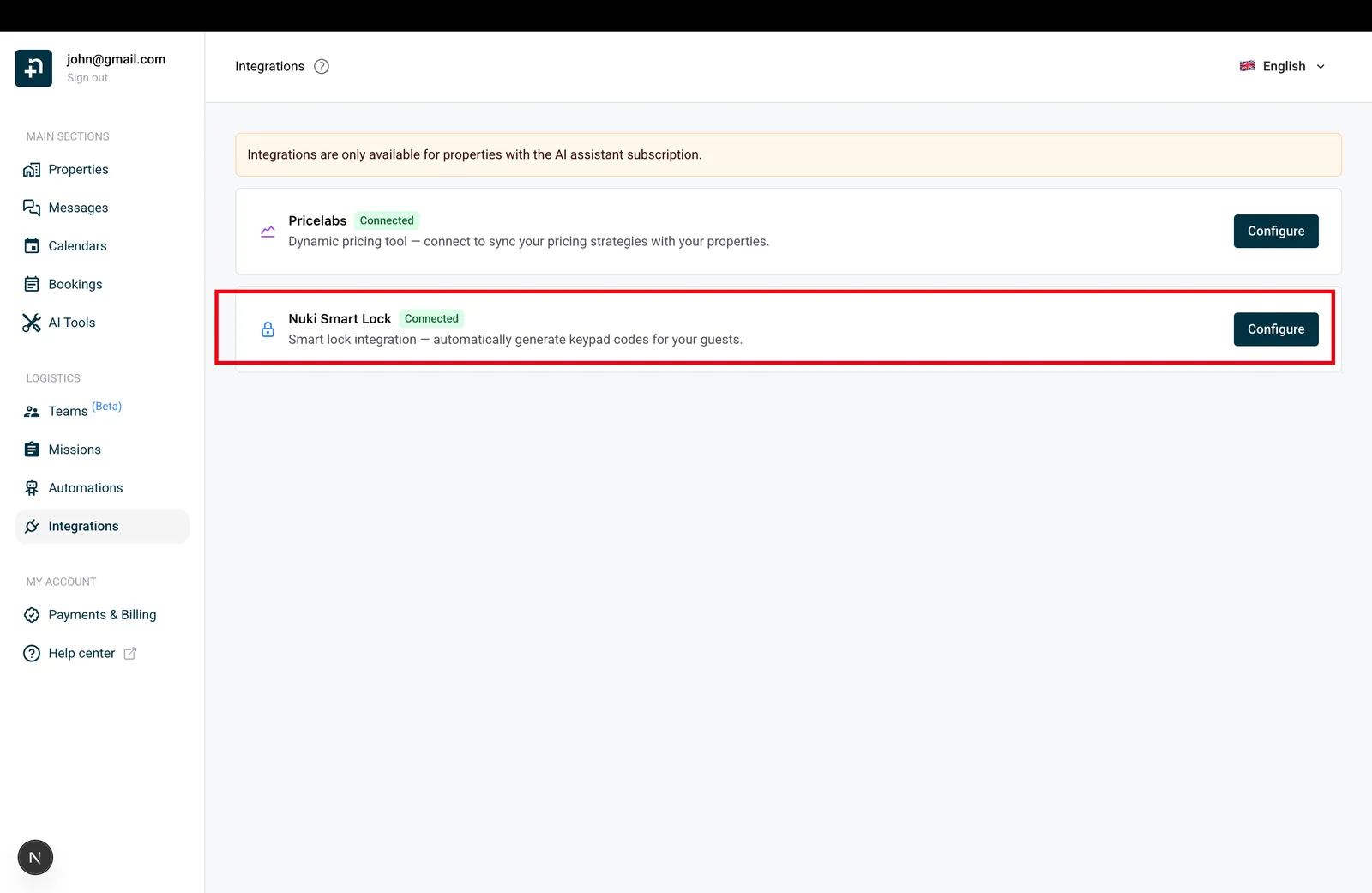
Now that your Nuki account is ready, head over to Nowistay. Go to Integrations from your Nowistay dashboard.
You’ll see the Nuki Smart Lock card under the Smart locks section. Click “Configure” to open the connection panel.
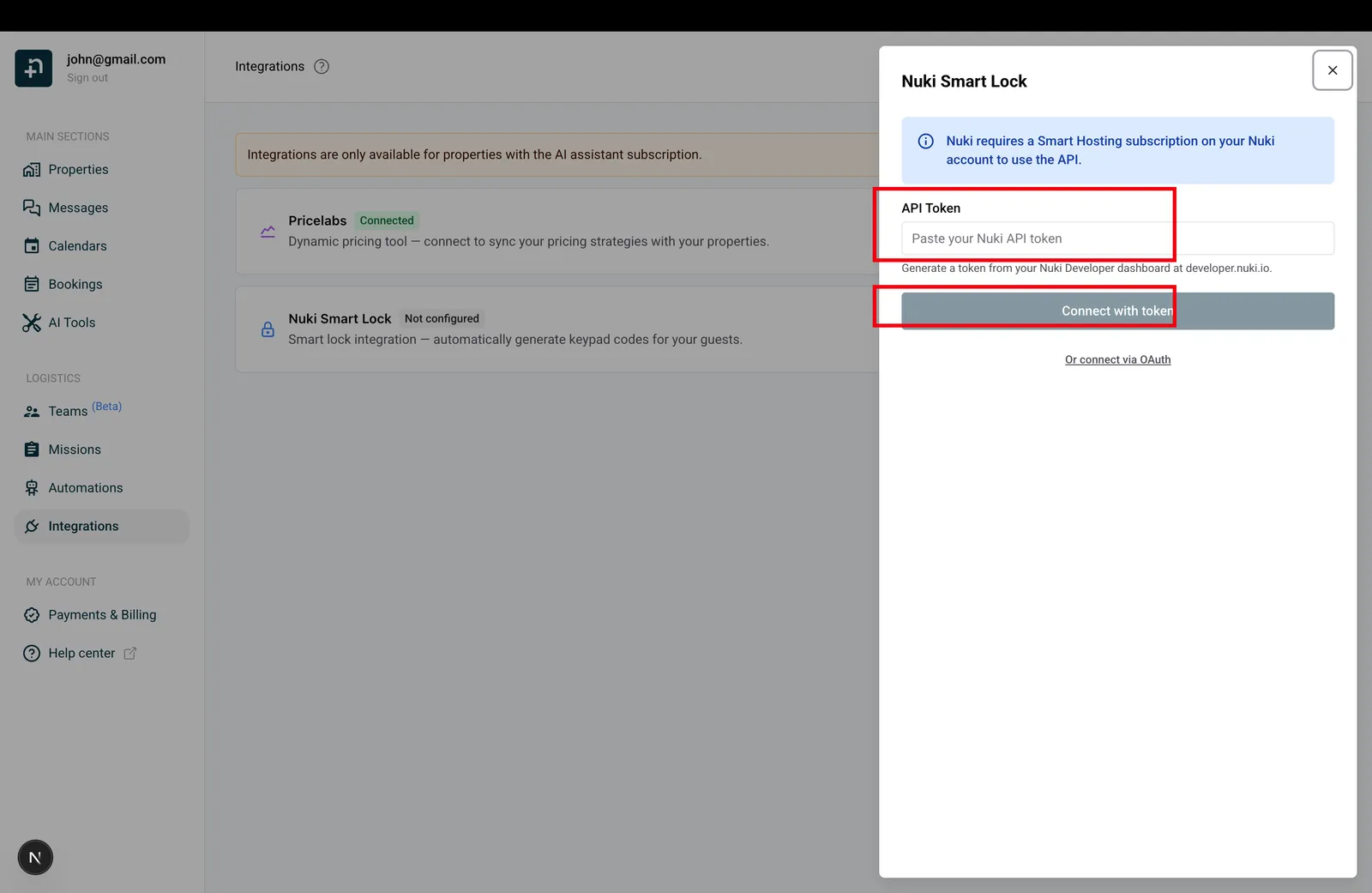
This is the simplest method. Here’s how to generate your token:
Then, back in Nowistay:
If the token is valid, you’ll see a success message and your Nuki account name will appear as connected.
Once connected, the drawer shows a compact account header, Help and Account actions. Use Search for a property to select the property you want to configure. Work on one selected property at a time.
Each row shows Door 1 or Door 2, the name, device, provider, access methods and status. The primary row has a Main door tag. Other-provider doors stay visible; use their provider action to switch drawers for editing. Finish saving or cancel your draft before switching property or provider.
Expand a door to edit its device, name, access methods and timing, then choose Save or Cancel. Only one editor is open at a time. Variable chips remind you that Door 1 matches {{smartlock_code}} and Door 2 matches {{smartlock_code_2}}; {{smartlock_link}} is shown once for the property with its link doors.
Use the row actions to remove a door or choose Use as main door. Changing the order changes future variable resolution. It does not rewrite already-sent messages or regenerate issued PINs. After removal, the remaining door becomes Door 1; check your templates before assigning a new Door 2.
An existing single-lock configuration becomes Door 1, with its current settings and issued codes preserved. You do not need to reconnect it. Add the second door only when needed; guest link access is not enabled automatically on an existing door.
Nuki supports remote opening in Nowistay, including a building entrance using a compatible Nuki Opener. For an entrance without a keypad, select link access and turn off keypad codes. The API token must allow lock actions as well as code management. If codes work but Test open fails with a permissions error, review the token permissions and reconnect with an appropriately authorized token.
After saving the device, use Test open to check its remote opening. This operates the real door. Save a device change before testing; the test action is tied to the saved device.
Enable this door controls whether Nowistay uses the door. Turning it off stops new code generation and makes its guest link and host opening actions unavailable. Already-issued PINs are not immediately erased by this switch. Turning off only Keypad code also keeps issued PINs; their dates continue to follow booking changes where the provider supports updates. Provider-generated offline codes keep their original expiry.
For each code door, choose how many days before arrival to generate the code: 1 to 14 days, with 5 days by default. Both doors use the same booking-based generation and retry process, but each keeps its own settings and result. A booking within the configured lead time can receive codes without waiting for the next day.
In Access timing, set a margin of 0 to 240 minutes, with 30 minutes by default. The selected margin extends access before arrival and after departure. For example, a 15:00 arrival and 11:00 departure with a 30-minute margin allow access from 14:30 on arrival day to 11:30 on departure day. Each link door uses its own margin too, so timing remains relevant when keypad codes are off.
Validity uses the property’s time zone and the booking’s arrival and departure times, including accepted negotiated times where applicable, then the property defaults. If neither provides a time, the fallback is 15:00 arrival and 11:00 departure. Online codes follow booking changes; provider-generated offline codes cannot be revoked early. A cancelled booking cannot use its guest opening link. Replacing the guest invalidates the previous link; send the current booking link to the new guest.
Where supported, Code source offers a random code or the last digits of the guest’s phone number. The drawer shows the number of digits required by the device. If the phone number is missing, too short, already used or rejected, Nowistay attempts a compatible random code. A provider-generated offline code cannot be forced to match the phone number or the other door.
Nuki keypad codes cannot contain 0 or start with 12. In phone-number mode, Nowistay adjusts these digits where necessary. Tell guests to use the code shown in their message, rather than assuming it is exactly the end of their phone number.
Nowistay checks eligible bookings and missing codes every 30 minutes. Door 2 receives the same checks as Door 1; a successful first door does not hide a failure on the second. Check the device connection, keypad, door activation, selected method, booking status and generation date.
Persistent failures generate a host alert after 18:00 on the day before arrival, in the property’s time zone. The email lists the property and the door name as separate entries. Automatic retries are bounded: after repeated failures and an alert, the door can require intervention. Do not assume retries continue indefinitely or that a missing code is available to the guest.
In the message editor, find all three variables in the Property category. Door numbers match the numbered rows in Integrations; the door name is the label you chose for guests.
{{smartlock_code}}: Door 1’s keypad code, or the other door’s available code if the main door has none. Keep this variable in existing messages.{{smartlock_code_2}}: the issued keypad code for Door 2. It stays empty if that door has no issued code.{{smartlock_link}}: one personal door-opening page for the booking, with a separate button for each active door using Open via link. Two link doors share this same link; there is no second link variable.When two keypad doors can accept the same code, Nowistay tries to reuse it for the booking. Matching codes are not guaranteed: device rules, existing codes and offline-code methods may require different codes. The booking details show the code for each door, even when both values match.
If Door 1 is link-only and Door 2 has a keypad, Door 2’s code fills both {{smartlock_code}} and {{smartlock_code_2}}. If the two doors have different codes and an older template uses only {{smartlock_code}}, that variable includes both codes with door labels. Use both numbered variables when writing separate instructions for each keypad. The older {{nuki_code}} alias continues to work.
{{smartlock_code}}. Building entrance: {{smartlock_code_2}}.”{{smartlock_code}}. To open the building entrance, visit {{smartlock_link}} and confirm the opening.”{{smartlock_link}}, choose the building entrance or apartment door, then confirm.”Adapt these examples to the saved order and names. Keep variables unchanged in every translation. Use a booking-specific link in your messages rather than copying one guest’s URL into a reusable template or public guide. A link provides access to whoever holds it during its permitted window.
Open a reservation from Bookings. After Financial, the drawer has separate Identity and Property access blocks, in that order. Property access shows the available keypad codes with their door numbers and names. If one code is missing, check that specific door; seeing the first code does not mean the second was generated.
The Door access link row uses an opening icon and tags naming the doors controlled by the link. The arrival entry shows the first detected check-in date and time; later openings do not replace it. On the bookings page, hover over the arrival icon in the status column to see the check-in tooltip and date.
The booking link opens a mobile-friendly page with one or two named door buttons. Only active doors configured for link access appear. Each button follows that door’s booking access window, including its margins. Outside the window, the guest cannot open that door. The page refreshes its status at the time boundary and when it regains focus; a loading failure offers a retry.
The guest chooses a door, then confirms Open door in a confirmation dialog. After a successful opening, that door has a 10-second wait before another opening. The page does not automatically send another open command. Refreshing the page does not open a door. If an attempt fails, read the error and retry deliberately once the problem is resolved.
A successful opening through the guest link records check-in for the booking. Merely viewing the page does not. A keypad opening with the booking’s code can also record check-in with Nuki, Tedee, Homeit, the Premium integration, TTLock locks connected to a gateway and igloohome locks connected to a Bridge. Keypad arrival detection is not available for every device. This is the same check-in information used by automated-message conditions; it does not verify the identity of the person holding the link or code.
To be alerted when a guest’s first entry is detected, turn on Guest checked in in Notifications > My notifications. It is off by default, and you receive it once per booking.
In the card and list views of Properties, the unlocked-padlock icon for Open property appears after the AI button when at least one active door supports remote opening. Open it to see a drawer containing only the available doors, including doors from different supported providers.
Choose the named door and confirm Open door. This host action is available without a booking time window and uses the same confirmation and 10-second wait after success. It does not require guest link access to be enabled and does not record a guest check-in. The device still needs to be reachable and the connected account must allow remote opening.
Remove an individual door from its row actions. To disconnect an account, open Account actions and choose Disconnect. Nowistay first attempts to revoke the managed online codes for the affected doors, then removes their assignments and stops future access automation. If revocation fails, the affected door and cleanup information are retained so removal can be retried; resolve the connection or provider error and try again. Offline codes remain subject to their original expiry.
Disconnecting one account affects its own doors. Other-provider doors remain configured, and their numbering may change if a preceding door was removed. Check the property’s remaining doors and message variables afterwards.
For the complete setup, see automated guest messages and variables.
