How to connect Tally forms to your bookings and automatic messages
The Tally integration links every Tally form your guests fill in to the right booking in Nowistay. You send each guest a personal link to your form. When they submit it, Nowistay marks the booking as submitted and can save some of their answers on it. Your automatic messages then react on their own: a reminder goes out only while the form is still missing, and the access instructions only once it has been sent.
Typical uses are a police registration form, an online check-in form, house rules to accept or an arrival questionnaire. This guide walks through the full setup with a real example.
What does the Tally integration do?
A personal form link for each booking. A message variable such as {{form.police}} becomes a link to your Tally form that carries a reference to the booking. Every guest gets their own link.
The submission is recorded on the booking. When the guest submits the form, Nowistay sets a booking parameter such as Police form submitted to “true” on that booking, usually within a few seconds.
Answers you choose are saved on the booking (optional). For example the estimated arrival time, which you can then reuse in your messages.
Your automatic messages react. Message conditions check whether the form was submitted, so the right message goes to the right guest without any manual follow-up.
The answers themselves, including uploaded ID photos, stay in your Tally account. Nowistay only stores the fact that the form was submitted and the answers you decide to save on the booking (80 characters maximum each).
Before you start
The AI Channel Manager subscription. Integrations are only available for properties with the AI Channel Manager subscription and configured with Nowistay PMS.
A Tally account and a form. The free Tally plan is enough: the API key Nowistay needs is free on every Tally plan.
Automatic messages set up. The form link is sent through your automatic guest messages. If you have not created any yet, start with how to set up automated guest messages.
One free booking custom parameter per form. Each connected form creates one booking custom parameter, and an account can have up to 20.
A real example: a police registration form before arrival
Sofia rents out three apartments in a city where every guest must be registered with the police before check-in. She needs each guest’s identity details, and she does not want to send the door code to a guest who has not filled in the form. Here is what she sets up with Nowistay:
At booking: a message thanks the guest and asks them to fill in the registration form, with their personal link.
3 days before arrival: a reminder, sent only if the form is still missing.
The day before arrival: the access instructions and door code, sent only once the form has been submitted.
6 hours before arrival: an alert to her check-in team member if the form is still missing, so they can call the guest.
Bonus: the guest’s estimated arrival time is saved on the booking and passed to her team.
The steps below follow Sofia’s setup. Adapt the names, questions and timings to your own case.
Step 1: Create your form in Tally
In Tally, create the form your guests will fill in. Sofia’s “Guest registration” form asks for:
Full name, date of birth and nationality of each guest
ID document type and number
A photo of the ID document
Estimated arrival time
Publish the form. You do not need to add anything for Nowistay yourself: Nowistay offers to add the booking reference for you in Step 4.
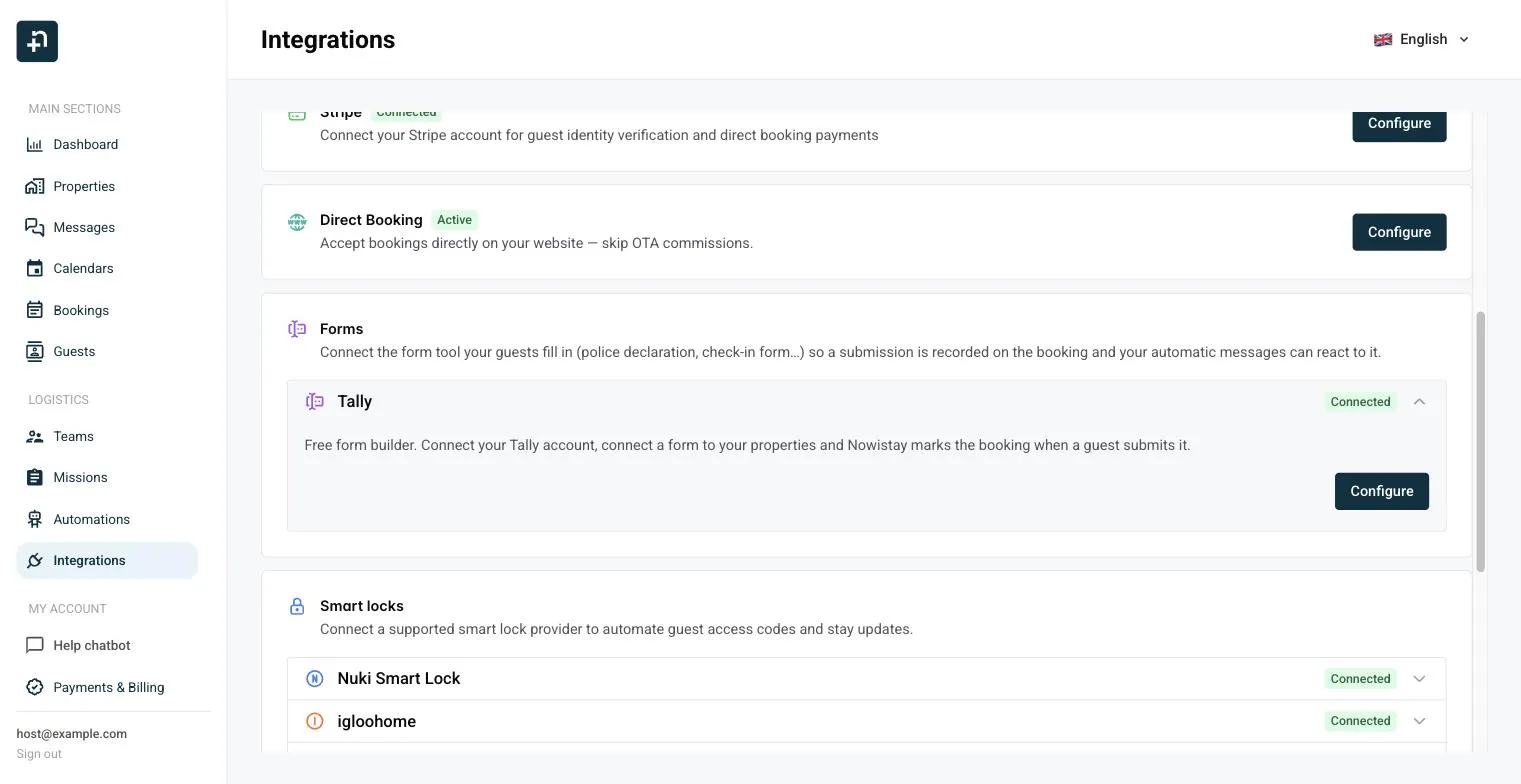
In the Forms section, open the Tally row and click Connect. The Tally forms panel opens.
Click Create an API key in Tally. It opens the API keys page of your Tally account. Create a key there and copy it.
Back in Nowistay, paste the key in the Tally API key field and click Connect.
The message “Tally account connected” confirms the connection, and the Tally row now shows Connected. Only the last four characters of the key are displayed afterwards.
The Integrations page: the Tally row sits in the Forms section.
Step 3: Connect a form and choose its identifier
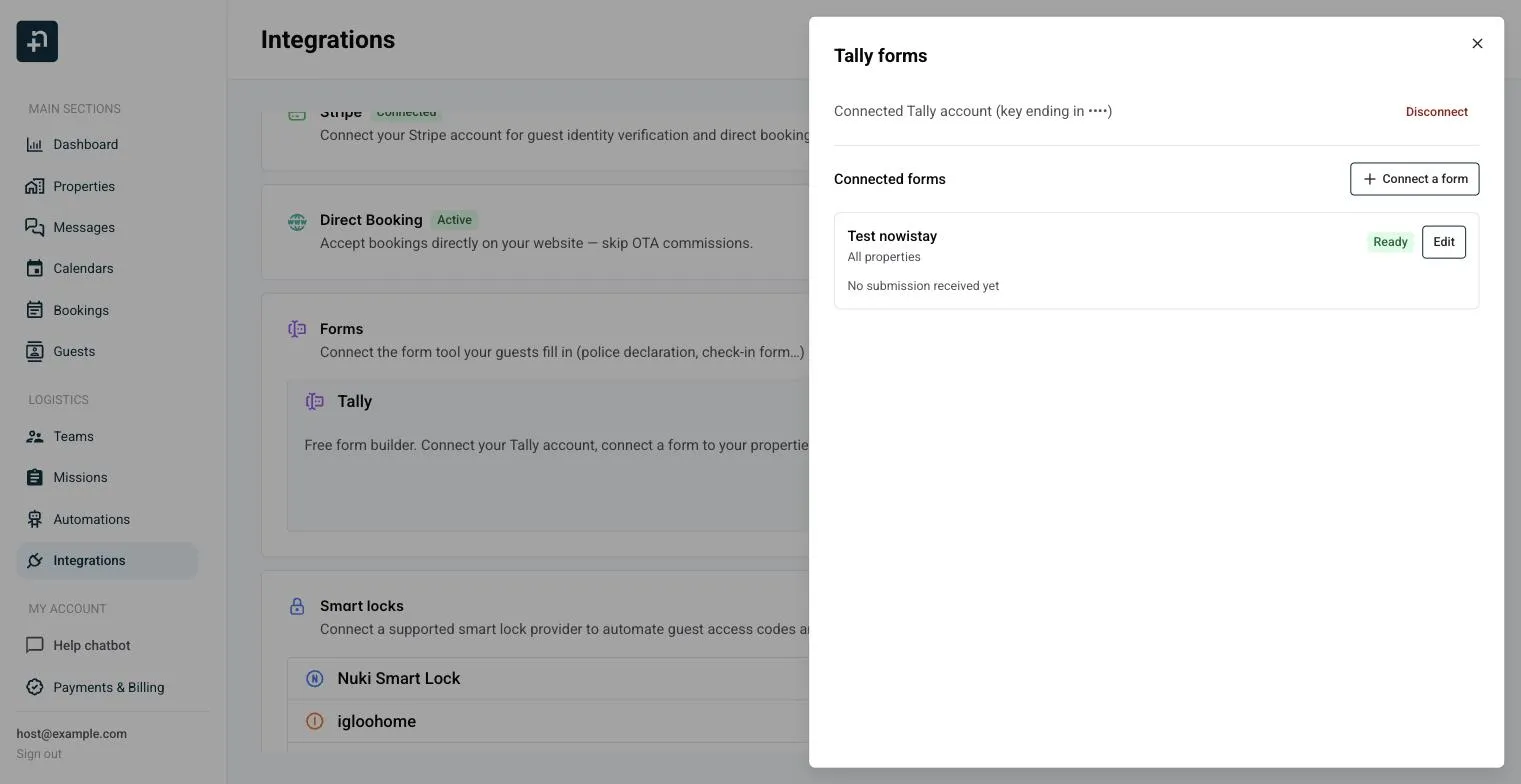
The Tally forms panel: your connected account, your connected forms and the Connect a form button.
In the Tally forms panel, click Connect a form.
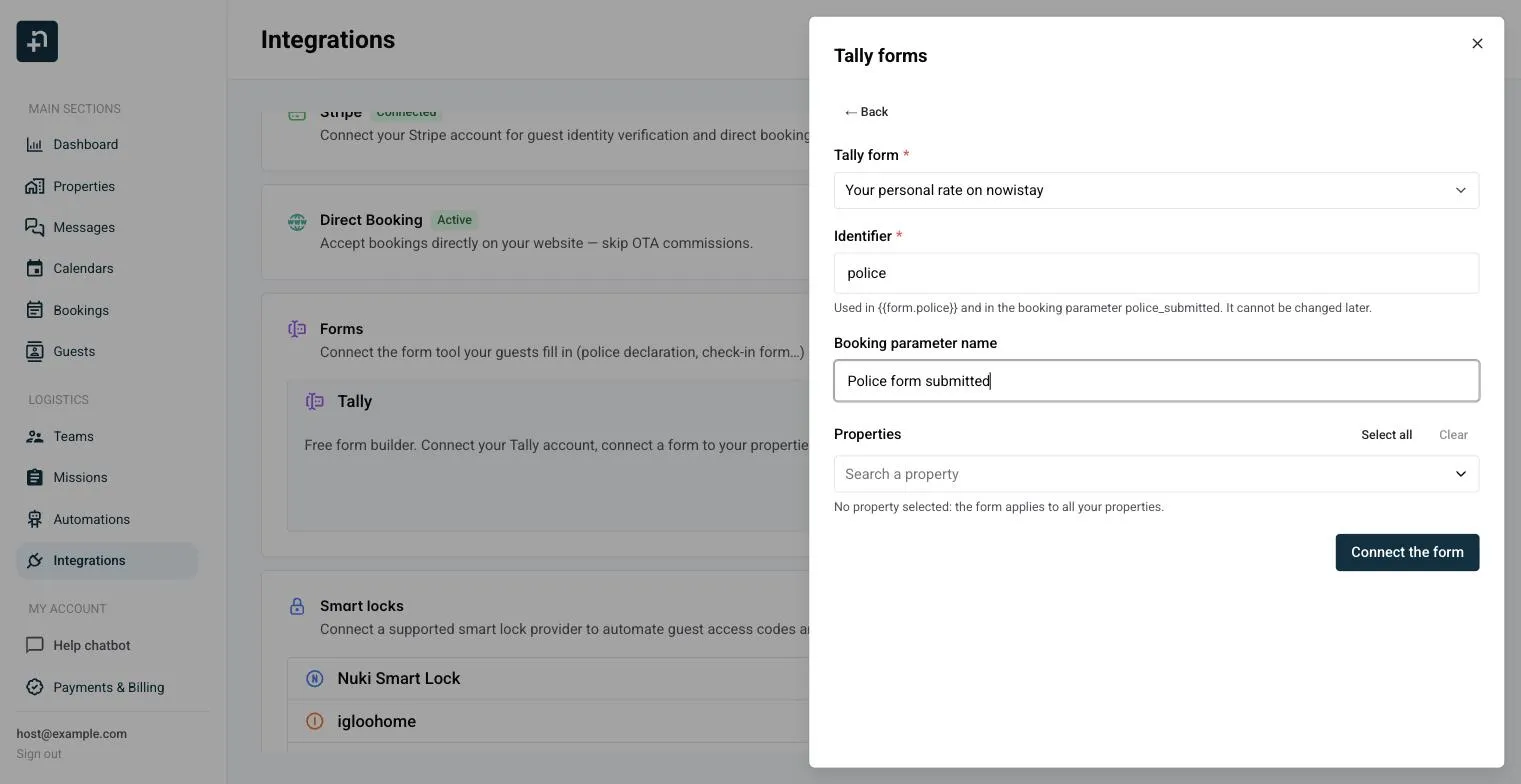
In Tally form, choose your form. Sofia picks “Guest registration”.
Check the Identifier that Nowistay suggests, and change it if you want (see below). Sofia types police.
Check the Booking parameter name. Sofia renames it “Police form submitted”.
Under Properties, select the properties that use this form, or leave the field empty to use it on all your properties.
Click Connect the form.
Connecting a form: the helper text under Identifier shows the variable and the booking parameter it creates.
What is the identifier?
The identifier is a short name you choose for the form. Nowistay uses it in two places:
The message variable {{form.police}}, which you insert in your messages to send the form link.
The booking parameter police_submitted, which Nowistay creates automatically and sets to “true” when the guest submits the form.
When you choose a form, Nowistay suggests an identifier based on its name. It can only contain lowercase letters, digits and underscores (30 characters maximum), and it cannot be changed later. Pick something short and clear, such as police, checkin or house_rules.
What is the booking parameter name?
It is the readable name of the police_submitted parameter. You see it on each booking and, above all, in the list of message conditions. Nowistay pre-fills it with ”
Ready to Put Your Rental on Autopilot?
Join 300+ property managers who save hours every week with AI-powered guest communication.