Are you using Smoobu to manage your short-term rentals? You can activate the Nowistay AI co-host on your listings, whether the bookings come from Airbnb, Booking.com, VRBO, Expedia or any other platform connected to your PMS. Here is how to do it, step by step.
Smoobu now requires an API key and a secret
Smoobu has changed the way its API is protected. Every request must now be signed with a secret that is issued together with the API key, and a request sent with the key alone is refused. Two consequences:
- New connections: copy both the key and the secret when you create them in Smoobu. Nowistay asks for the two of them.
- Connections made before this change: the key stored in Nowistay has no secret attached, so it stops working. Create a new key in Smoobu and save it with its secret, following the last section of this article.
Smoobu shows the secret only once, in the window that appears right after the key is created. If you close that window without copying it, the secret cannot be displayed again and you have to create a new key.
Before you start
- An active Smoobu account on a paid plan, with your properties already configured. API keys cannot be created during a free trial.
- Your listings correctly synced in Smoobu with your booking platforms (Airbnb, Booking.com, VRBO, Expedia).
- An active AI Channel Manager subscription on Nowistay.
Step 1: create your API key and secret in Smoobu
- Log in to smoobu.com.
- Go to Advanced settings, then API Keys.
- Click Create, give the key a name, then submit.
- The Token created window shows the key and the secret. Copy both and keep them somewhere safe before closing it.
Leave this Smoobu page open, you will come back to it in step 2 to paste the webhook URL.
Step 2: connect Smoobu to Nowistay
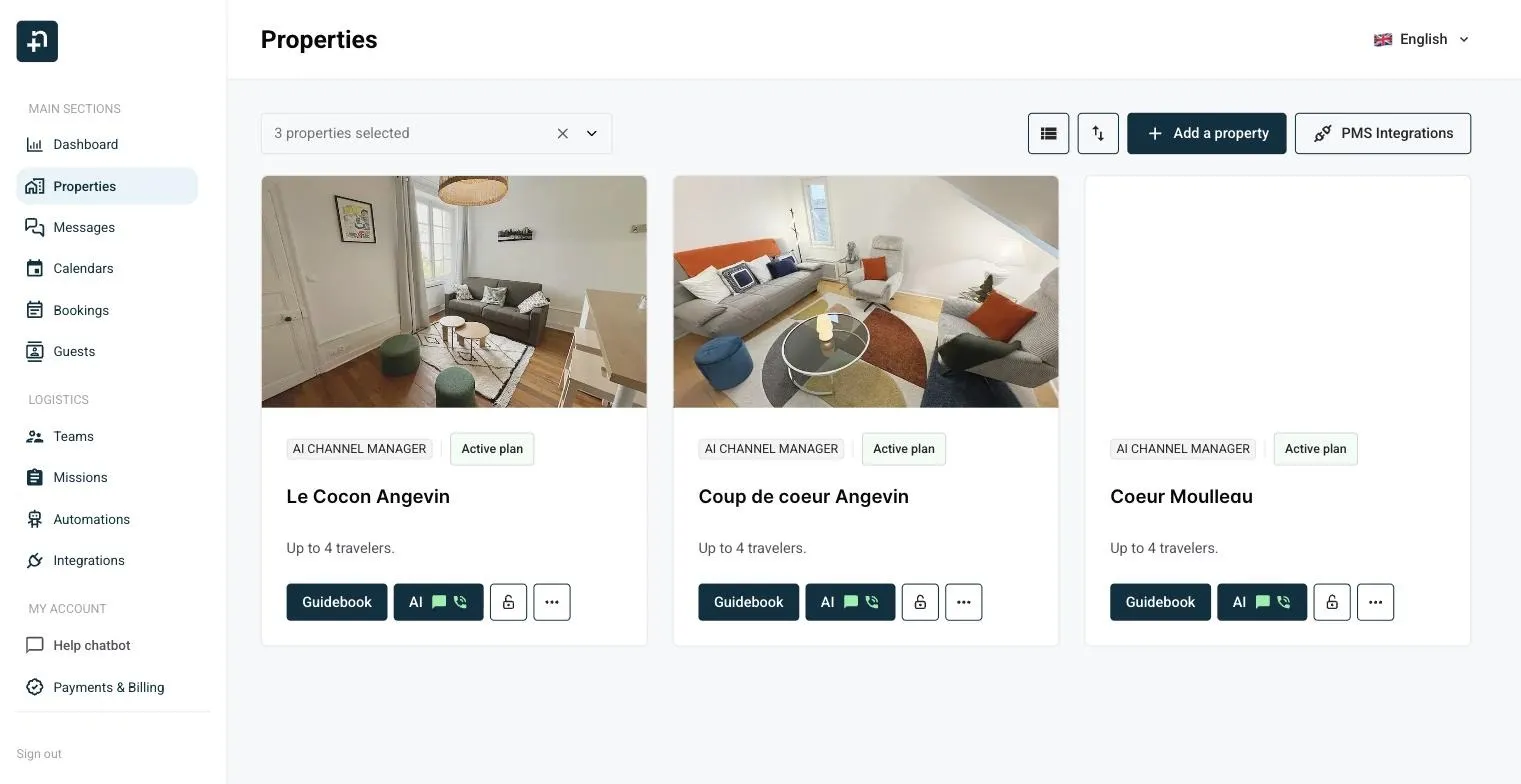
- In Nowistay, open the Properties page and click PMS Integrations at the top right.
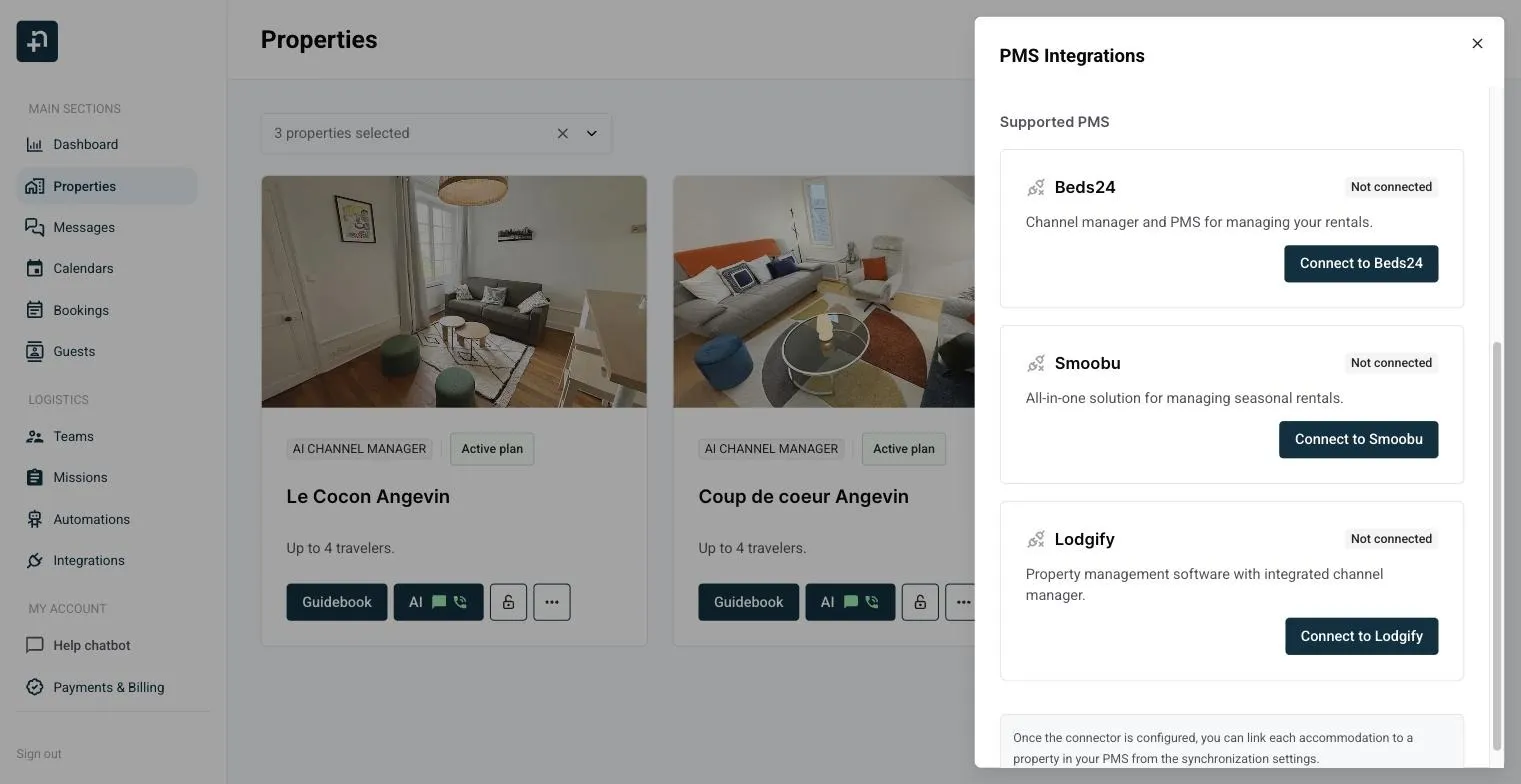
- In the Supported PMS section, find the Smoobu card and click Connect to Smoobu.
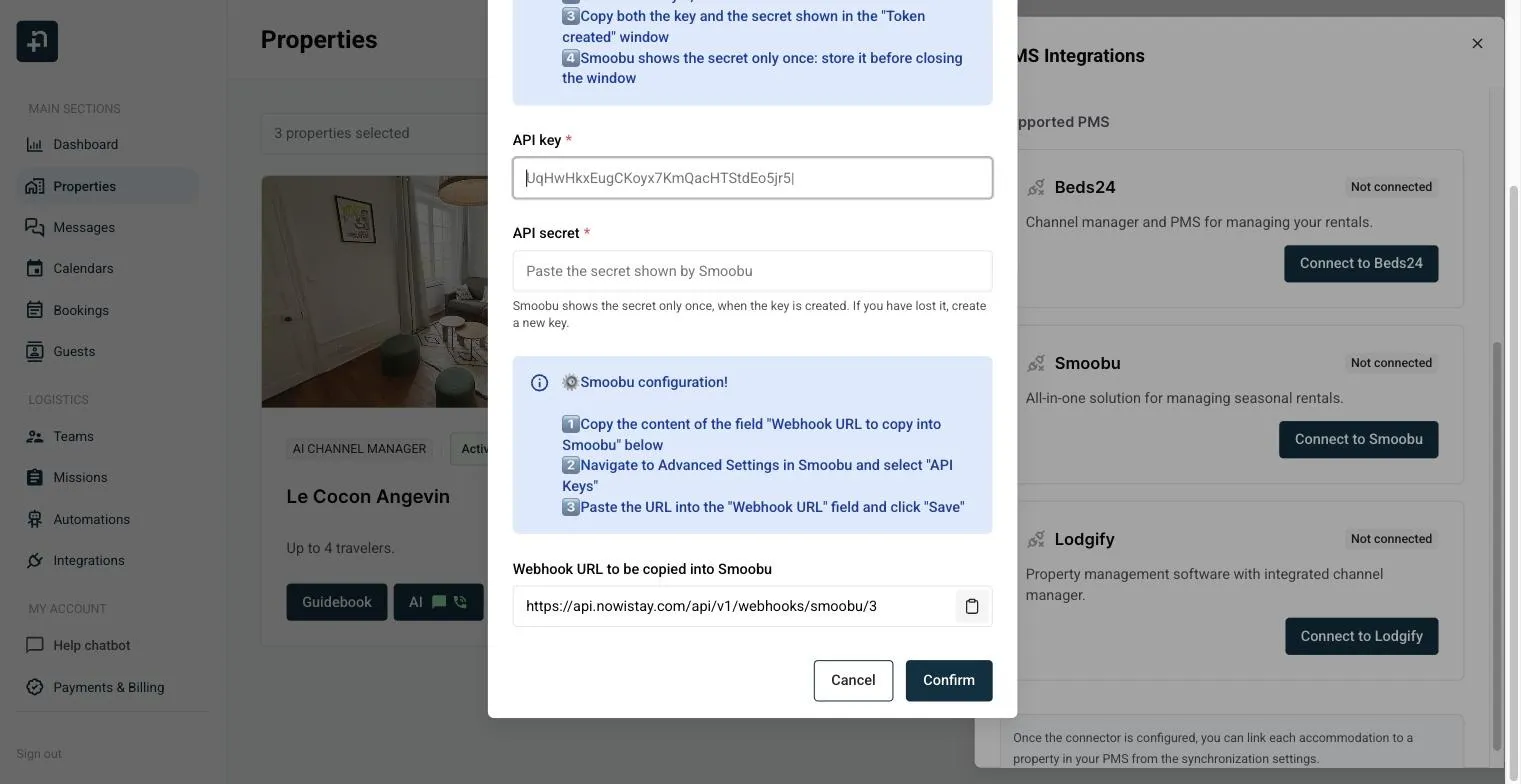
- Paste your key into API key and your secret into API secret.
- Do not click Confirm yet. Copy the content of the Webhook URL to be copied into Smoobu field at the bottom of the window.
- Back in Smoobu, on the same Advanced settings and API Keys page, paste that address into the Webhook URL field and click Save. If another tool already uses that field, add ours next to the existing address instead of replacing it.
- Return to Nowistay and click Confirm.
The webhook is what tells Nowistay about your new bookings and your guests’ new messages. Without it the connection looks fine but nothing arrives in your dashboard, so do not skip step 5.
Your credentials are checked with Smoobu before they are saved. If the key or the secret is wrong, you see the error immediately instead of a connection that claims to work and stays empty.
Step 3: link each property
The connector gives Nowistay access to your Smoobu account. Each Nowistay property still has to be matched with the right Smoobu property.
- On the Properties page, open the … menu of a property and choose Synchronization.
- If the short questionnaire appears, answer that you use a PMS, that you want to keep it, and that it is one of the listed platforms.
- Select Smoobu in the PMS field, then the matching accommodation in the Property field, and save.
- Repeat for every property the AI co-host should handle.
Once a property is linked, its bookings and guest messages flow into Nowistay and the AI co-host answers your guests before, during and after their stay.
Update your Smoobu API key
Use this when you rotate your key, and when you replace a connection created before the secret became mandatory.
- Create a new key in Smoobu as described in step 1, and copy the key and the secret.
- In Nowistay, open Properties, then PMS Integrations, and click Update API key on the Smoobu card.
- Paste the new key and the new secret, then click Confirm.
- Check that your properties are still synced, then revoke the old key in Smoobu.
Always use Update API key rather than Reset connector. Resetting unlinks every property connected to Smoobu and you would have to link them one by one again.
